Configuration of uWebChat
First time setup
The first time when someone in your tenant starts a conversation with uWebChat, a configuration dialog will appear. Enter your company name in the field as shown below.
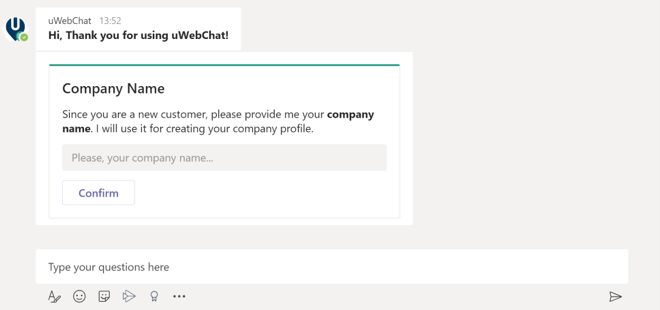
It is not required to activate a paid version of uWebChat during the initial setup. You can start using uWebChat without entering a licence key, this will give you access to the features of the Free edition. You can choose to enter the license key later by using the Upgrade command.
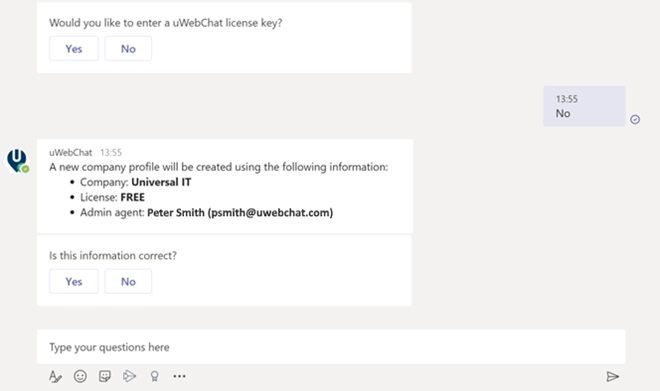
If you select Yes, you can enter the licence key as shown below
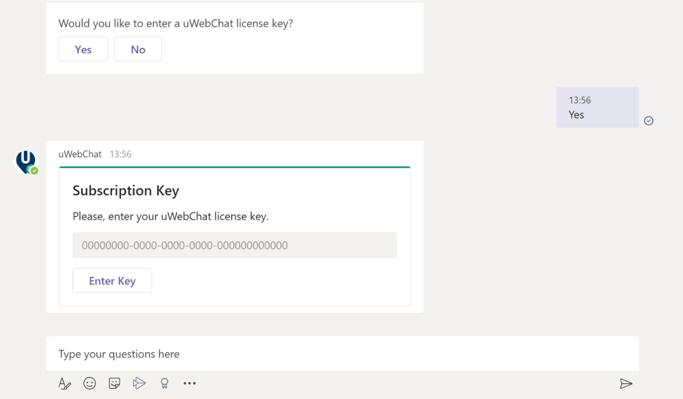
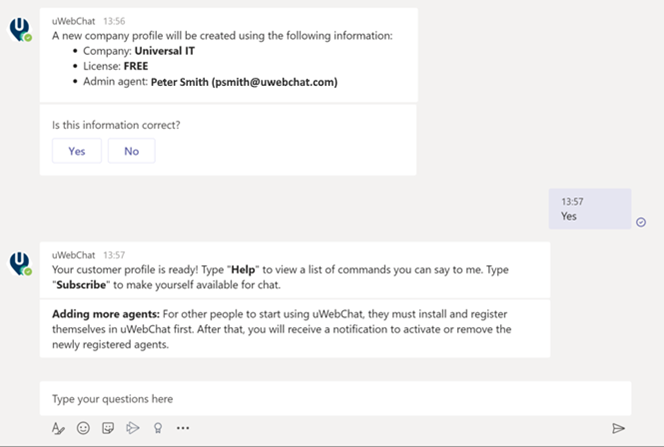
After confirming the entered information, a new company profile will be created. uWebChat has now been configured in your tenant!
Changing settings and Commands
In this manual we will refer to direct text commands when configuring uWebChat. Commands such as Subscribe, Debug and Stop can be typed into your Teams chat bar to directly interact with uWebChat.
However, uWebChat also offers a method for a more graphical configuration. Using the Help command in the Teams chat bar will show you a Teams rich card which can be used to select the settings you wish to modify. You can always replace the commands described in this manual with going to the Help command and clicking the relevant setting.
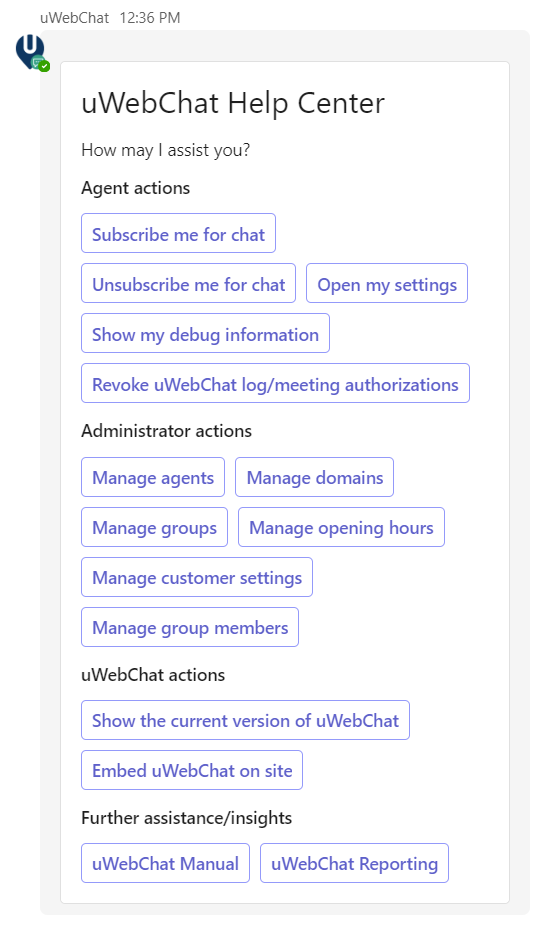 Simply click on one of the buttons to start configuring your instance of uWebChat!
Depending on your permissions (admin or user) you will see the settings relevant to you.
Subscribing
uWebChat uses a mechanism called subscribing which enables agents to decide whether they want to be able to receive chat requests.

To make yourself available for chat, type Sub, Subscribe or Subscribe me in uWebChat. Once you are subscribed, website visitors can start a chat with you This also depends on your Teams presence.
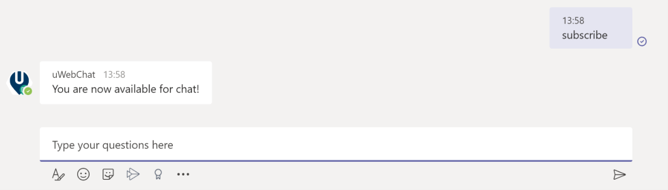
To make yourself unavailable for chat, type Unsub, Unsubscribe or Unsubscribe me in uWebChat. Once you are unsubscribed, website visitors can not start a chat with you anymore. Your Teams presence will not affect this.

There is no limit to the number of times an agent can subscribe or unsubscribe. When an agent registers with uWebChat for the first time, they will already be subscribed, and they do not need to subscribe themselves.
Embed uWebChat on a website
Please note: Embedding uWebChat inside a website requires access to edit HTML code for the specific website. If you do not have access to do this, please contact the person or organization that is responsible for you maintaining your website.
Domain whitelisting
uWebChat requires adding your domain(s) before you can embed it on a website. This is a security measure to ensure that only authorized domains can start a chat with your agents. The number of domains you can add to uWebChat is dependent on which license you use. Please see https://www.uwebchat.com for more details.
Please note, wildcard domains and sub-domains are not supported. This means that if you own example.com and you wish to add a chat to websites example.com, sales.example.com, marketing.example.com, this will count as 3 domains.
Add and manage domain
You can add a domain to uWebChat by using the Add Domain command. You can enter the domain name in a rich card.
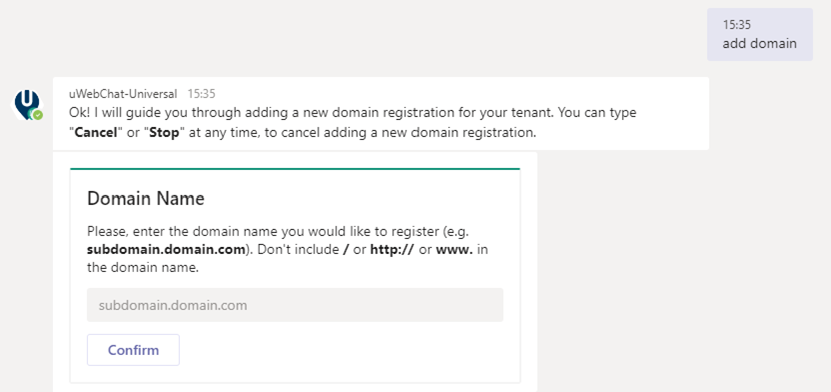
By using the Edit Domain command, you can change an already registered domain. After entered the command, select the domain which you want to change and enter the new domain in the rich card. Click the Confirm button to save your changes.
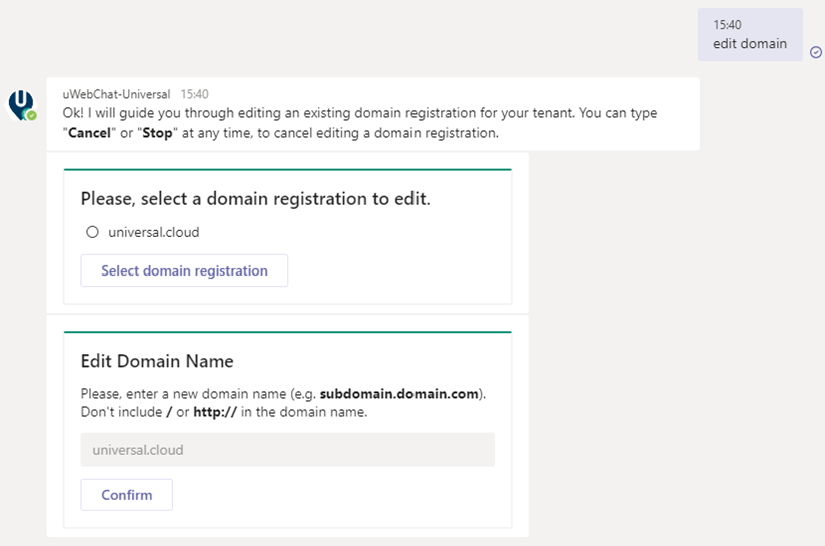
With the command Show Domains you can see which domains have already been registered. With the command Remove Domain you can remove an already registered domain.
Add uWebChat to a website
To integrate uWebChat in your website, type the command Embed or Embed Webchat in uWebChat. This command will generate a code snippet which you can use to integrate uWebChat in your website.
You can either select to generate a code snippet for a direct chat with a specific agent or a code snippet that allows your customers to chat with a group (see 5. Working with agent groups). Select which agent or group you would like to embed. After that, a short manual will appear that will guide you through the steps required to embed uWebChat inside a website.
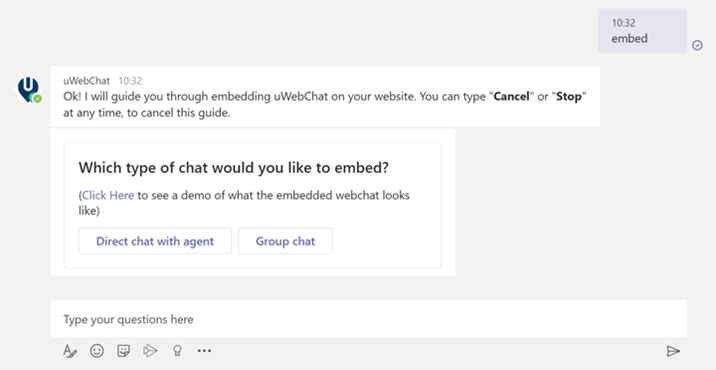
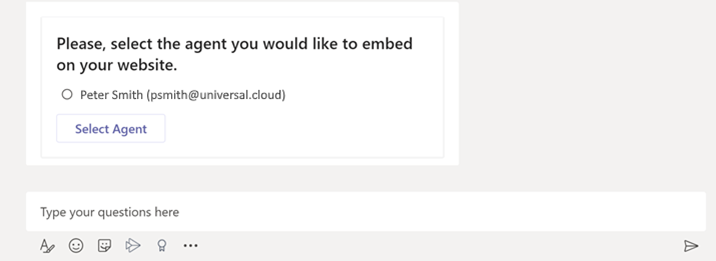
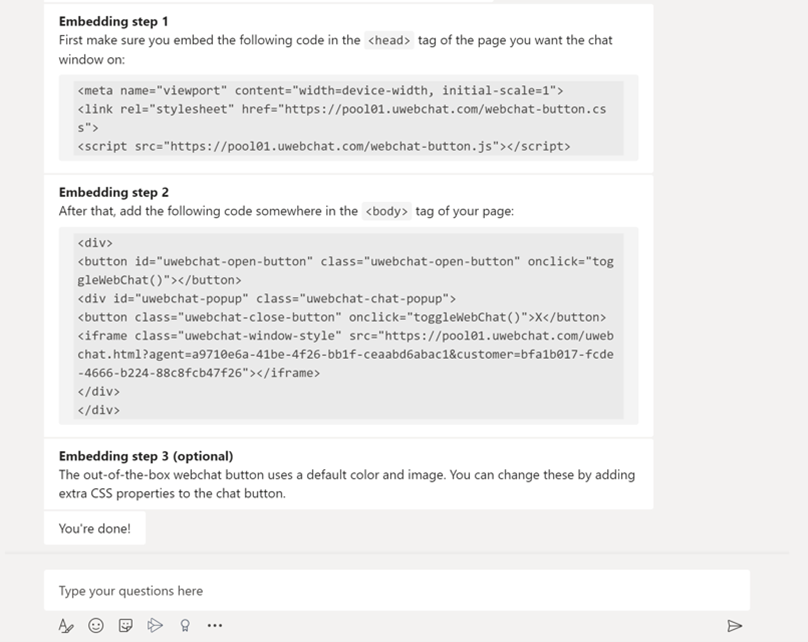
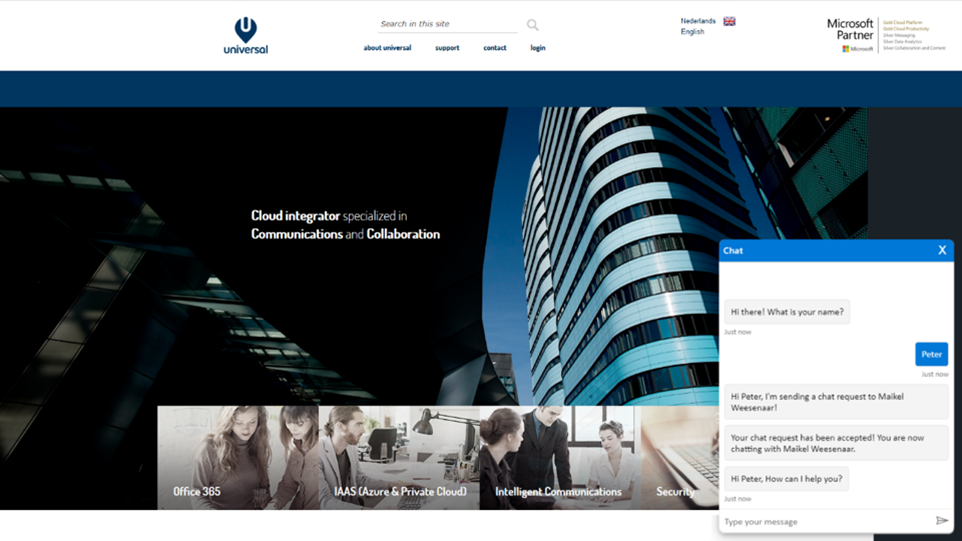
You can copy and paste the code snippets inside the HTML code of your website. In the screenshot below you will see uWebChat integrated into an existing website. The default out-of-the-box chat button can be found on the bottom right corner of the screen. You can customize this button by using CSS.