Agent and group presence
uWebChat uses an agent’s Teams presence to determine whether the agent can be hunted. This chapter explains how agent presence in uWebChat works and how this effects agent groups.
Configuration
Starting from version 1.17.0 you will be required to grant admin consent at the tenant level. This is a one-time action, and allows uWebChat to read rich presence information from users within your organization.
There are two main methods of granting admin consent within uWebChat.
Registration Dialog
When registering your company alongside a valid license key, you will be prompted to authorize for presence.
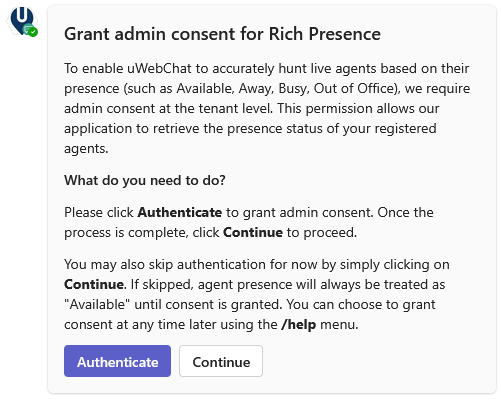
Note that this won't apply if you installed your uWebChat version before 1.17.0.
Admin Help Menu
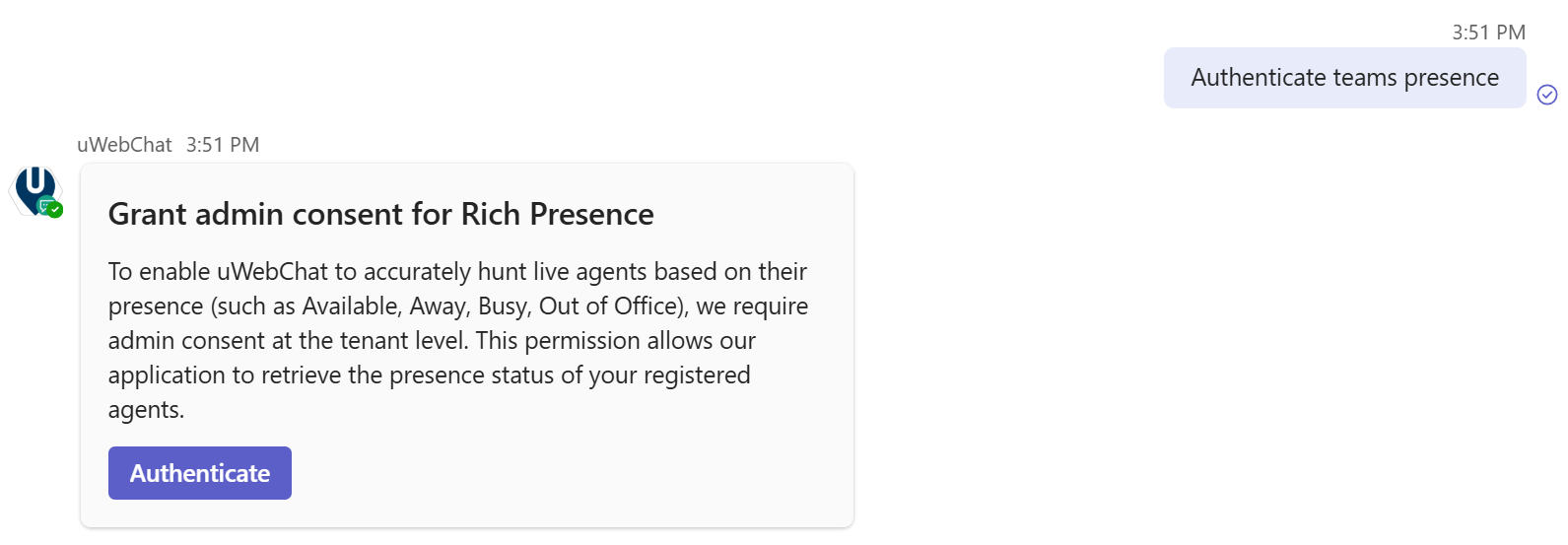
You'll always have the option of directly authenticating for presence at any time through the available command.
This command can be called from within the help menu, or by directly speaking to the bot.
Help menu
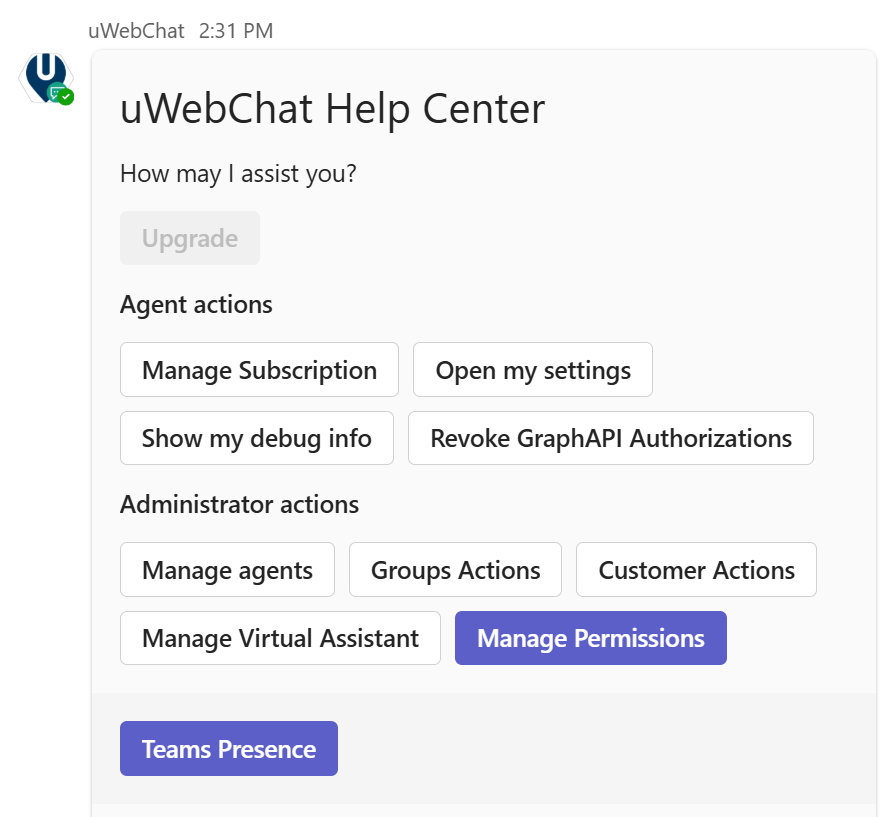
Help -> Manage Permissions -> Teams Presence
Direct chat
Agent presence
Once presence has been consented by an admin, uWebChat will try to monitor your Teams presence based on your email address. By having information about your presence, uWebChat is able to prevent chat users from starting a conversation with you whenever you are unavailable.
The table below describes in what scenario’s an agent can be hunted by chat users.
| MS Teams status | Can be hunted |
|---|---|
| Online | Yes |
| Busy | Yes |
| Do not disturb | No |
| Be right back | No |
| Away | No * |
| Offline | No |
Exceptions to the above scenarios:
- When an agent issued the Unsubscribe command to uWebChat, he cannot be hunted by chat users, even if his status is ONLINE or BUSY.
- When an agent is already having a conversation with a chat user, he cannot be hunted by other chat users.
- When no MS Teams presence can be fetched by uWebChat, it will be ignored. Chat users will always be able to start with the agent unless the agent unsubscribes.
Hunt When Away
An exception to the table above is the Hunt When Away feature. This is an opt-in setting on group level, that allows agents to be hunted within said group when their status indicates they are Away.
To access this functionality, open the related group settings by going to Help -> Groups Actions -> Manage Groups -> Edit an existing group or simply by typing edit group. After selecting the relevant group to edit you'll be presented with the following rich card:
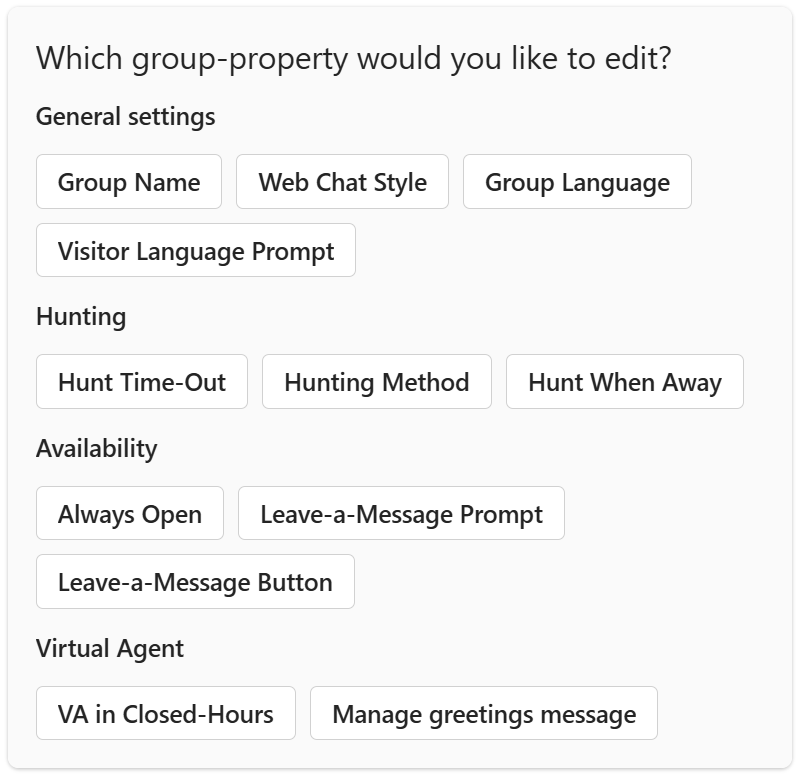
Here you can select Hunt When Away to change the setting to either Yes or No.
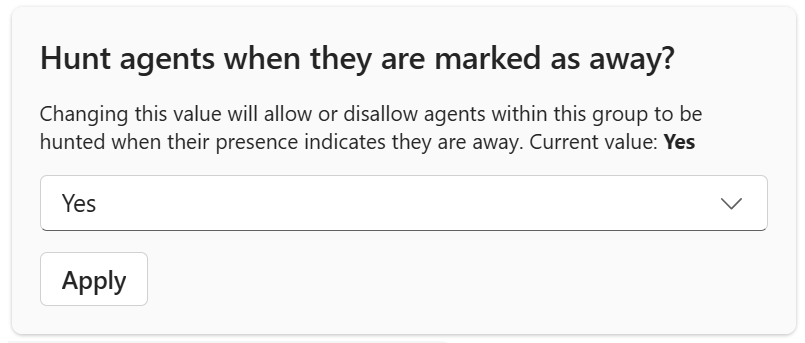
After applying your changes, if you changed the setting to Yes, agents residing within this group will now be hunted when their status indicates they are Away.
Group presence
To determine if chat users should be able to hunt an agent group, groups have their own presence. This presence is determined using the conditions described in the table below.
| Condition | Status |
|---|---|
| Contains available group members | Available |
| Group members are unavailable | Busy |
| Outside of opening hours (does not apply when group is Always Available). | Away |
A group can be hunted if any agents assigned to the group are available. When using opening hours, the group can only be hunted when the current time is between the defined hours.