Upgrading your license
After using the free version of uWebChat, you might want to upgrade to a paid subscription so you can benefit from extra features (see 1.4. uWebChat editions). This chapter will explain how to upgrade your current uWebChat subscription.
If you have any issues during this process, please contact support@universal.cloud.
Upgrading free license
You can either type Upgrade or Upgrade Subscription in uWebChat to start the upgrading process.
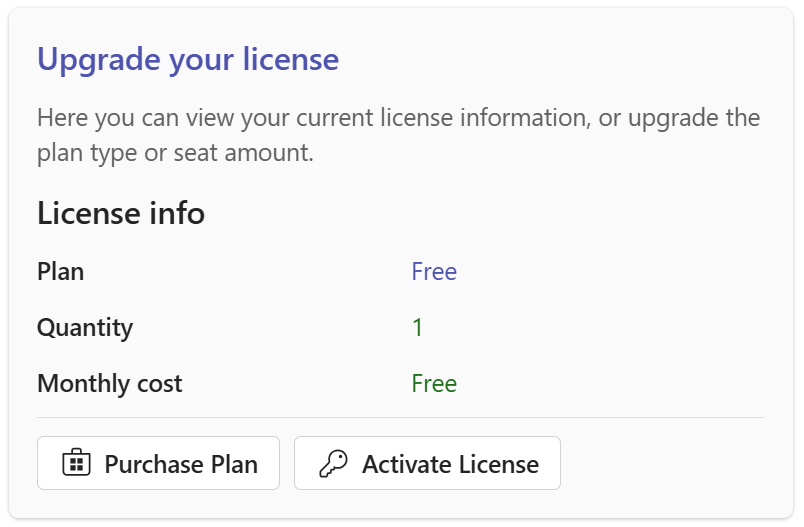
Here you can either choose Purchase Plan or Activate License. Purchase plan is the option to pick if you're starting out from scratch, and would like to upgrade from Free to any of our available plans. Activate License is relevant if you're already in possession of a License Key, and wish to manually upgrade your account.
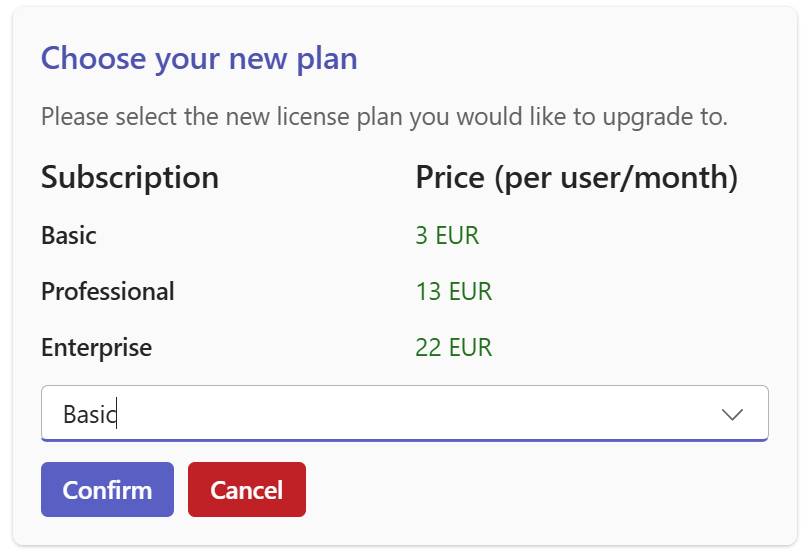
Upon picking Purchase Plan, a rich card will appear, prompting you to choose any of our available plans.
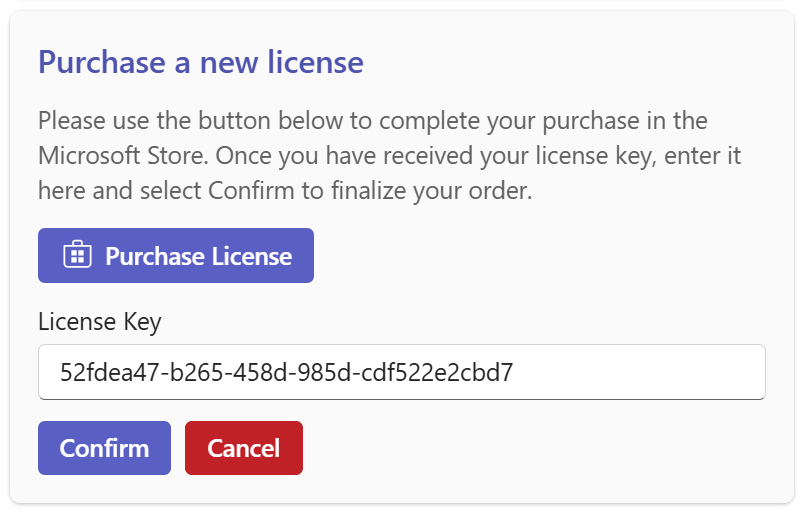
After choosing a new plan to upgrade to, you'll be prompted to do the following: Purchase License. This button will redirect you to Microsoft AppSource. Read here for more information on how to successfully purchase a new license. The plan you've selected in the step prior should already be added to your cart. Once said key has been acquired, you can enter it within the relevant License Key field.
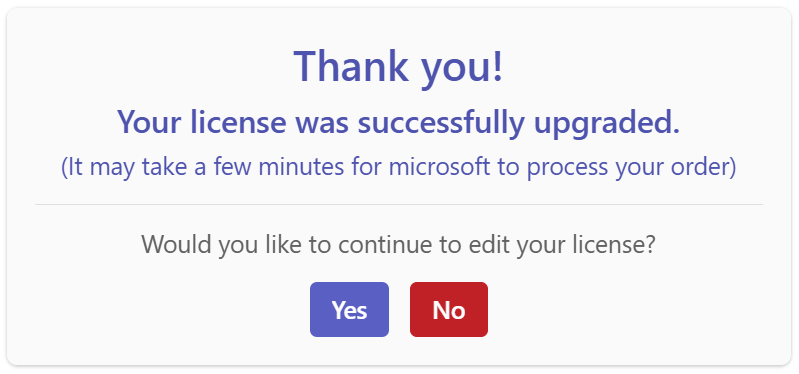
Once you've clicked Confirm, another rich card will appear, displaying a short thank you message indicating that the process has been completed successfully.
Purchase additional licenses
If you have purchased one of the commercial editions of uWebChat and you wish to purchase additional licenses to expand the maximum amount of the agents, please follow the following steps.
You can either type Upgrade or Upgrade Subscription in uWebChat to start the upgrading process.
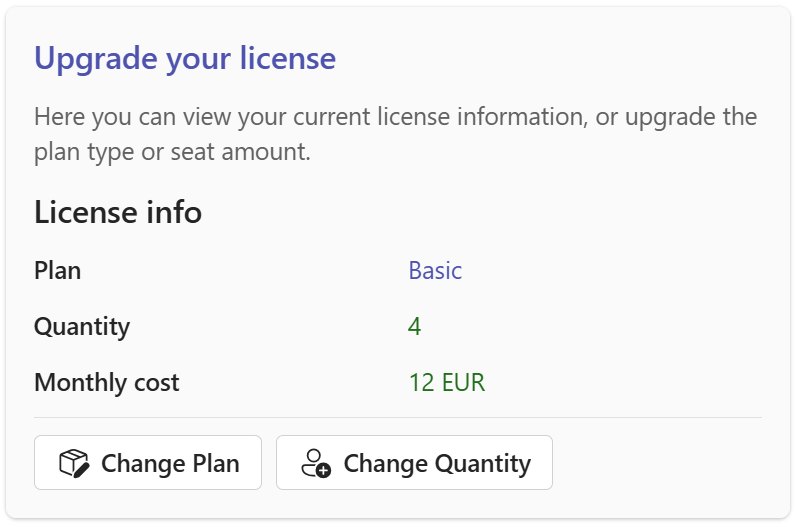
Here you can either choose Change Plan or Change Quantity. To proceed purchasing additional licenses for your given plan, please select Change Quantity. A rich card will appear, allowing you to enter the desired number of the total amount of users that will be using uWebChat.
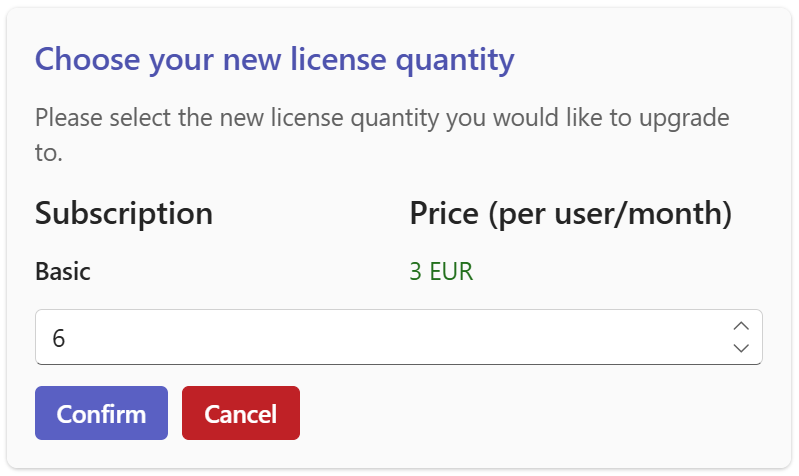
After entering the new number of licenses, another rich card will be prompted that displays a short summary of your selected changes. Here you can additionally press Show active license for a quick overview of said changes, compared to your currently active license.
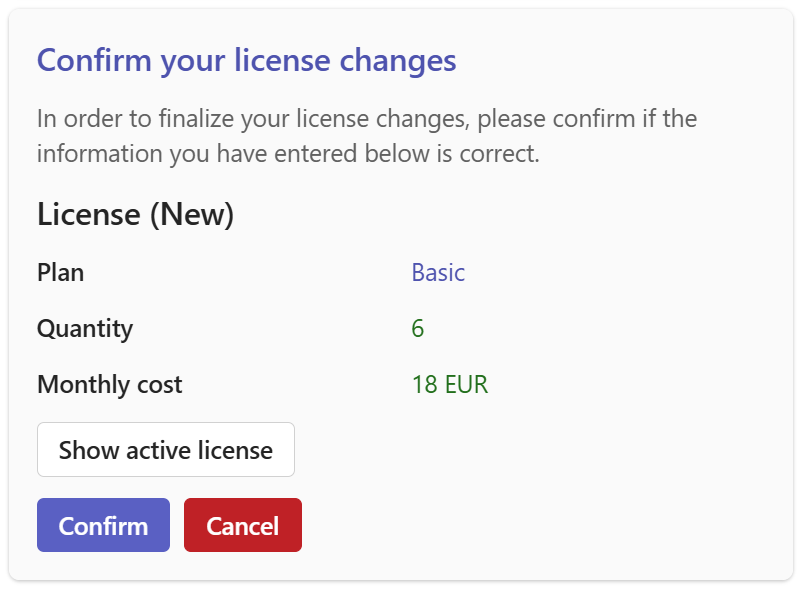
Once you've clicked Confirm, another rich card will appear, displaying a short thank you message indicating that the process has been completed successfully.
Note that it might take a few minutes for Microsoft to process your changes.
Change commercial license type
If you have purchased one of the commercial editions of uWebChat and wish to change the license type (example: Basic to Professional), please follow the following steps.
You can either type Upgrade or Upgrade Subscription in uWebChat to start the upgrading process.
Here you can either choose Change Plan or Change Quantity. To proceed changing the license type, please select Change Plan. A rich card will appear, allowing you to select the new desired plan to upgrade to.
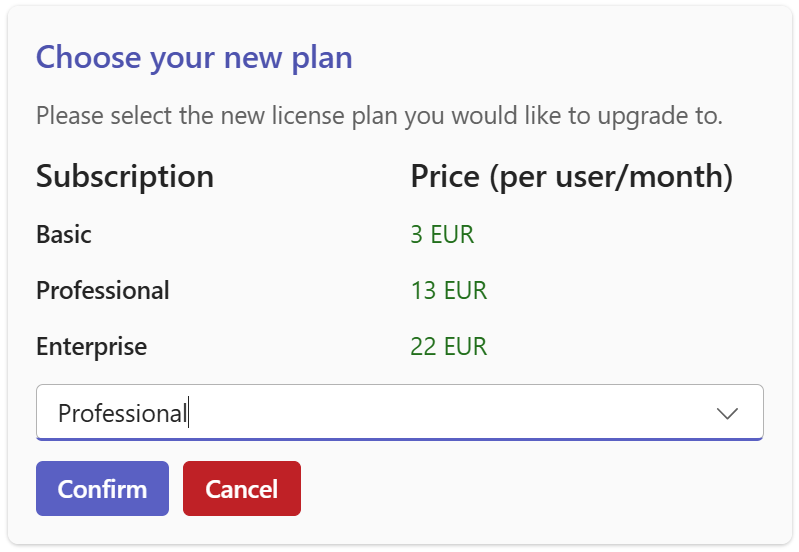
After selecting a new license plan to upgrade to, another rich card will be prompted that displays a short summary of your selected changes. Here you can additionally press Show active license for a quick overview of said changes, compared to your currently active license.
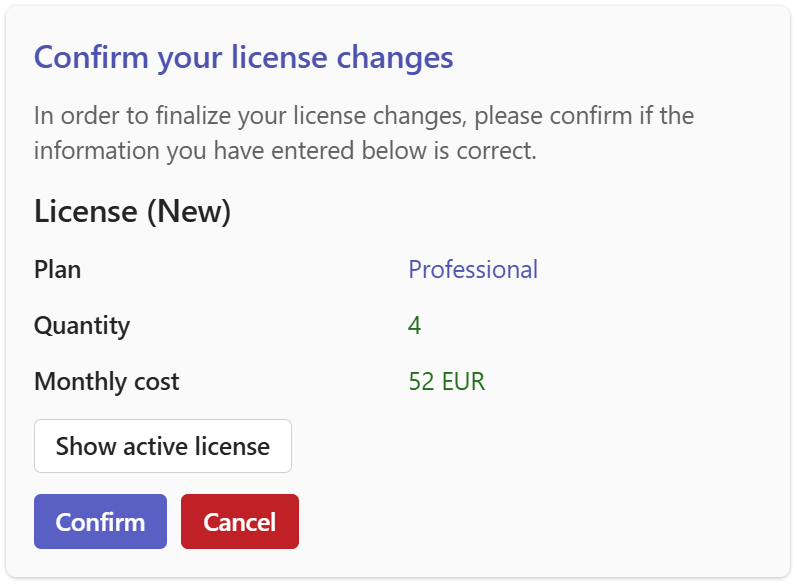
Once you've clicked Confirm, another rich card will appear, displaying a short thank you message indicating that the process has been completed successfully.
Note that it might take a few minutes for Microsoft to process your changes.