uWebChat embedden op een Power Pages-site
Let op: Het embedden van uWebChat in een Power Pages-site vereist toegang om de HTML-code van de betreffende site te bewerken. Als u hier geen toegang toe hebt, neem dan contact op met de persoon of organisatie die verantwoordelijk is voor het onderhoud van uw Power Pages-site.
Domein-whitelisting
uWebChat vereist dat u uw domein(en) toevoegt voordat u het op een website kunt embedden. Dit is een veiligheidsmaatregel om ervoor te zorgen dat alleen geautoriseerde domeinen een chat met uw agents kunnen starten. Het aantal domeinen dat u aan uWebChat kunt toevoegen, is afhankelijk van de licentie die u gebruikt. Zie https://www.uwebchat.com voor meer details.
Let op: aangepaste Power Pages-domeinen worden ondersteund! Dit betekent dat u xxxxxx.powerappsportals.com en/of customerservice.xxxxxxx.com moet toevoegen. Elk domein telt als 1 domein.
Domein toevoegen en beheren
U kunt een domein aan uWebChat toevoegen met het Add Domain-commando. U kunt de domeinnaam invoeren in een rich card.
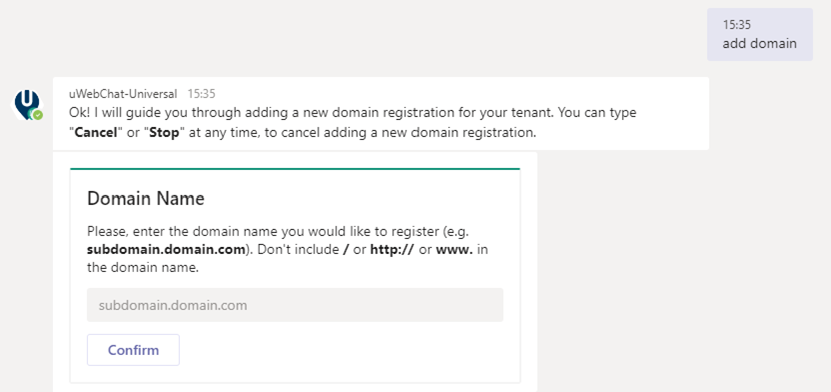
Met het Edit Domain-commando kunt u een al geregistreerd domein wijzigen. Nadat u het commando hebt ingevoerd, selecteert u het domein dat u wilt wijzigen en voert u het nieuwe domein in de rich card in. Klik op de Confirm-knop om uw wijzigingen op te slaan.
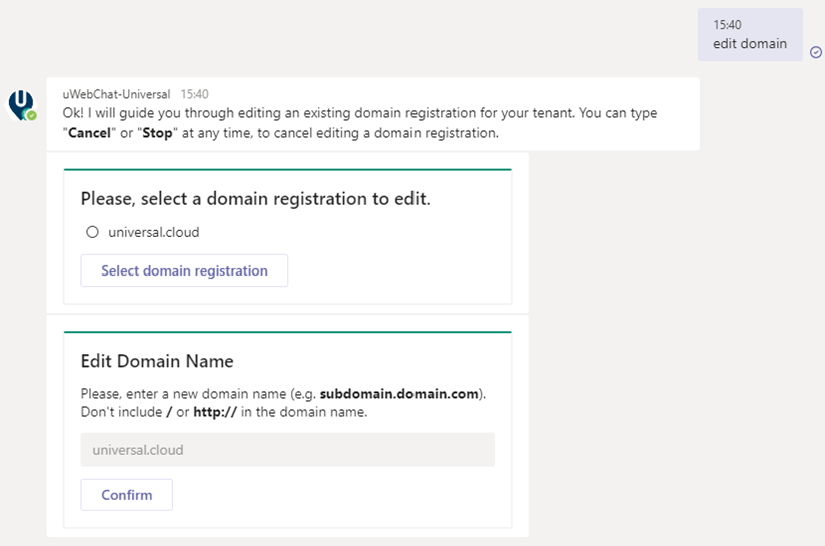
Met het commando Show Domains kunt u zien welke domeinen al zijn geregistreerd. Met het commando Remove Domain kunt u een al geregistreerd domein verwijderen.
uWebChat aan een website toevoegen
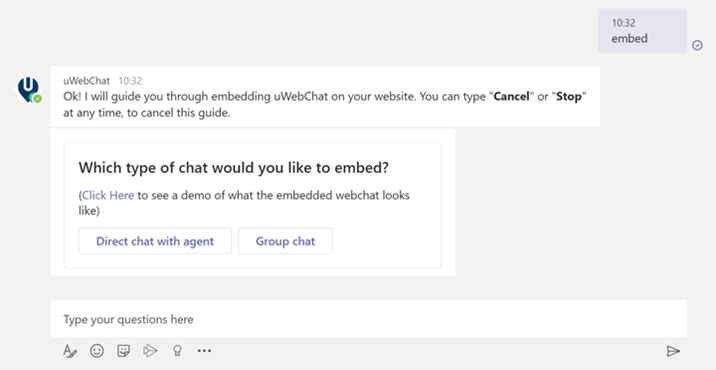
Om uWebChat in uw website te integreren, typt u het commando Embed of Embed Webchat in uWebChat. Dit commando genereert een codefragment dat u kunt gebruiken om uWebChat in uw website te integreren.
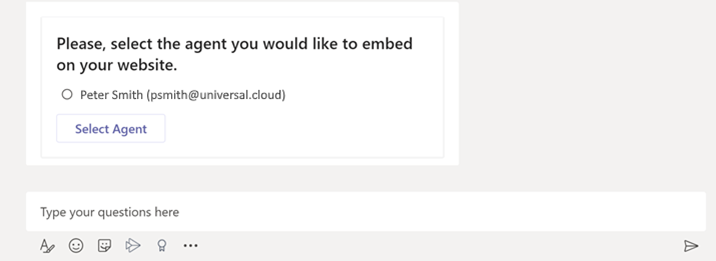
U kunt ervoor kiezen om een codefragment te genereren voor een directe chat met een specifieke agent of een codefragment waarmee uw klanten met een groep kunnen chatten (zie 5. Werken met agentgroepen). Selecteer welke agent of groep u wilt embedden. Daarna verschijnt er een korte handleiding die u door de stappen leidt die nodig zijn om uWebChat in een website te embedden.
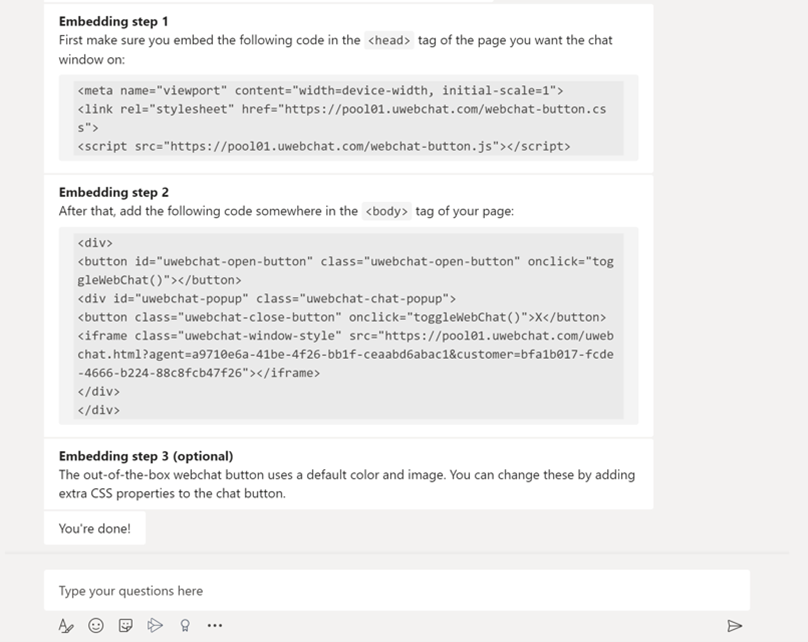
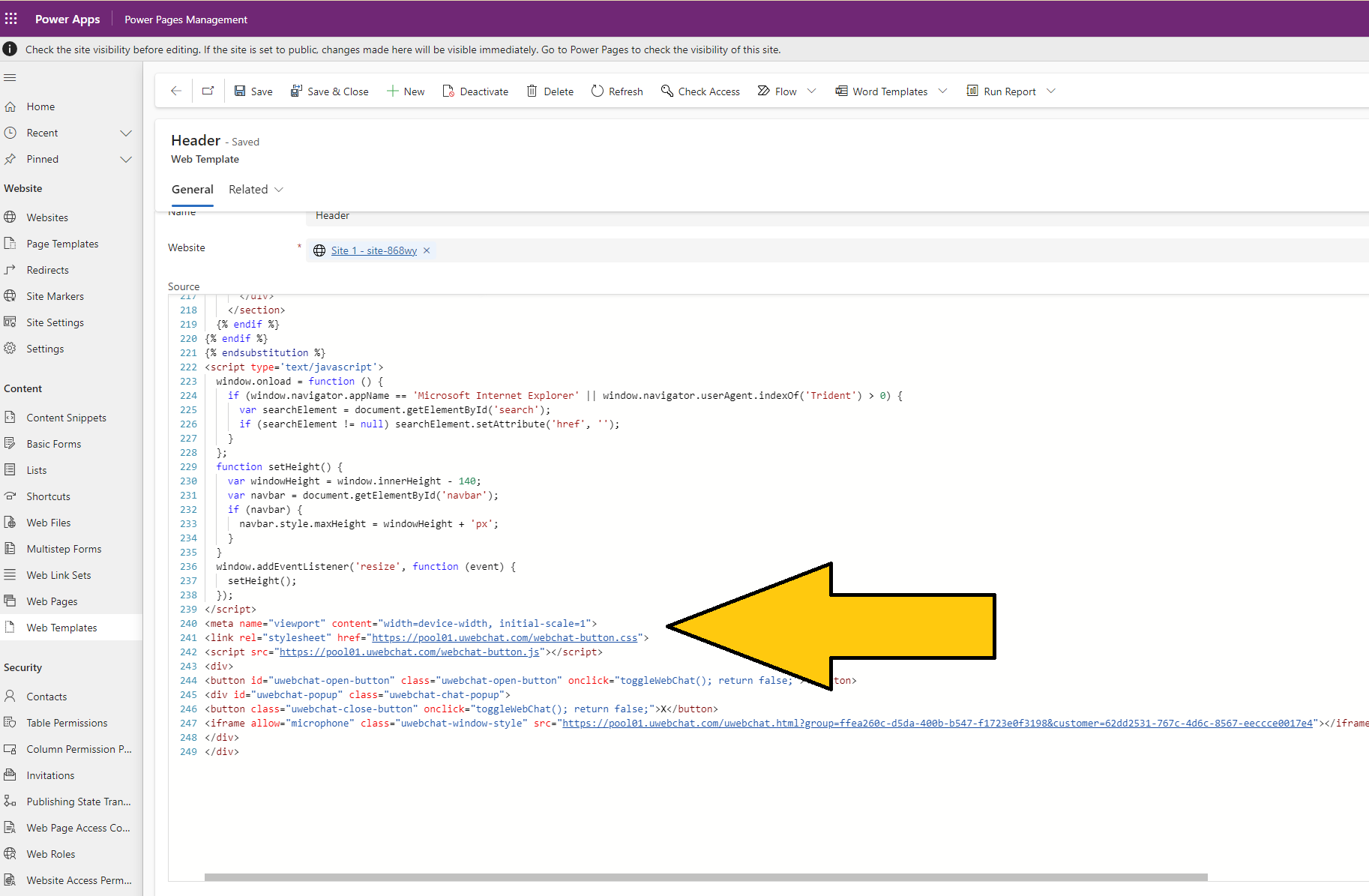
U kunt de codefragmenten kopiëren en plakken in de HTML-code van uw Power Pages-site.
In de onderstaande schermafbeelding ziet u de basisopzet waar u de uWebChat-code moet toevoegen om deze in een Power Pages-site te integreren. U moet de uWebChat-knop aan elke gewenste pagina van de Power Pages-site toevoegen.
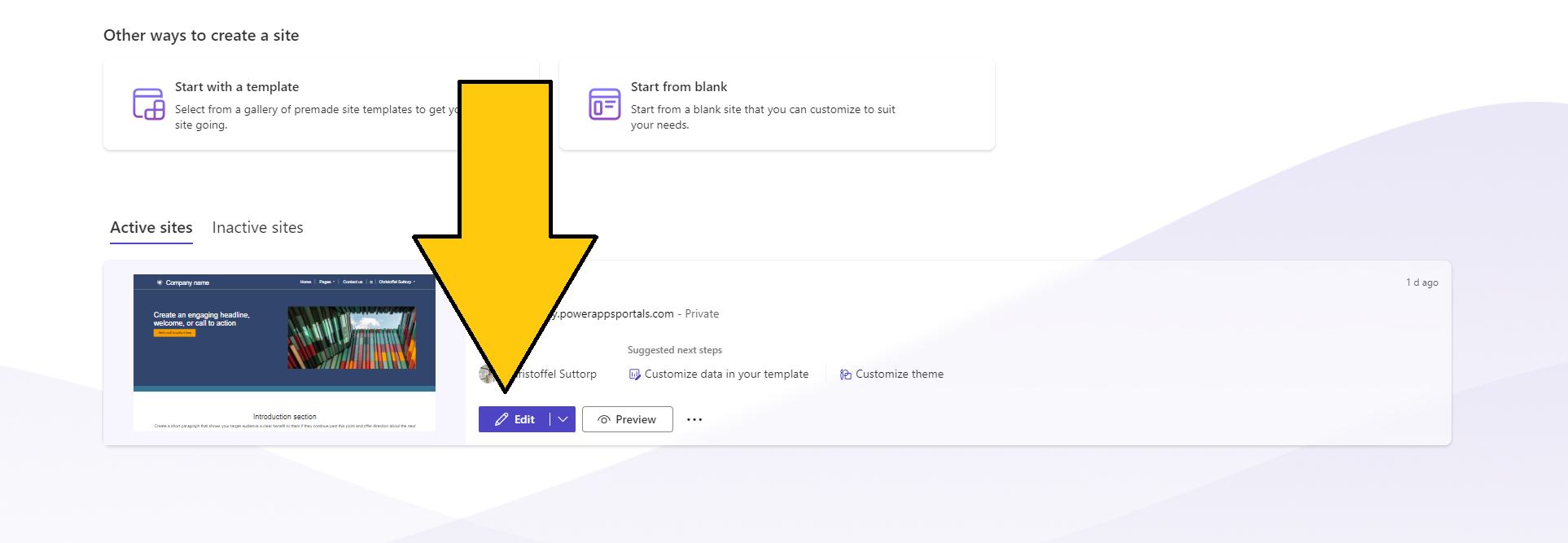
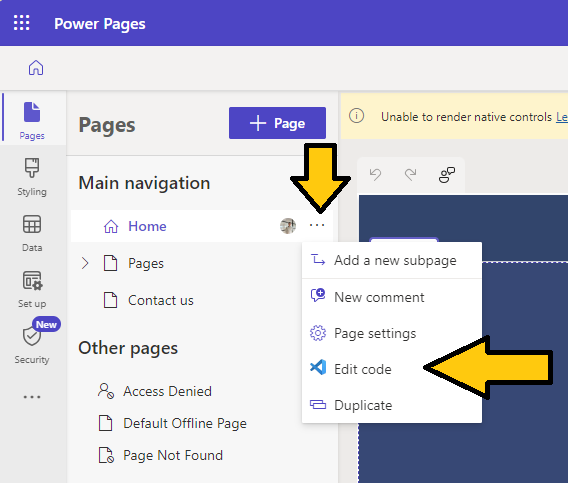
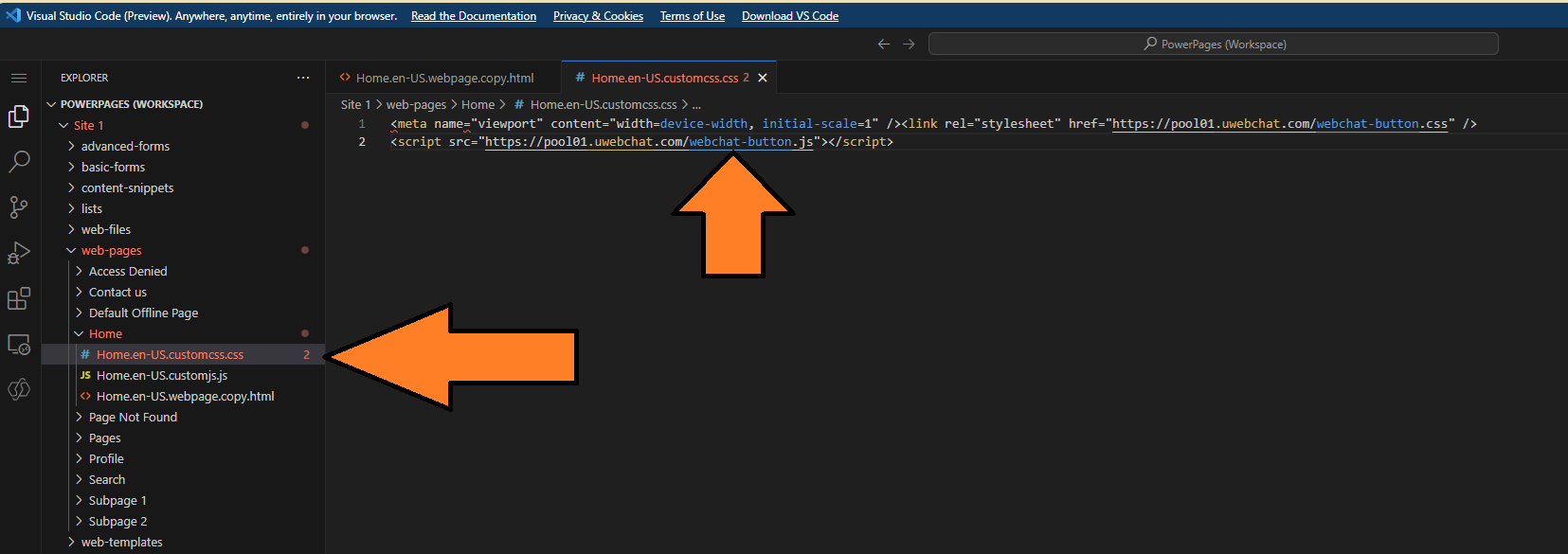
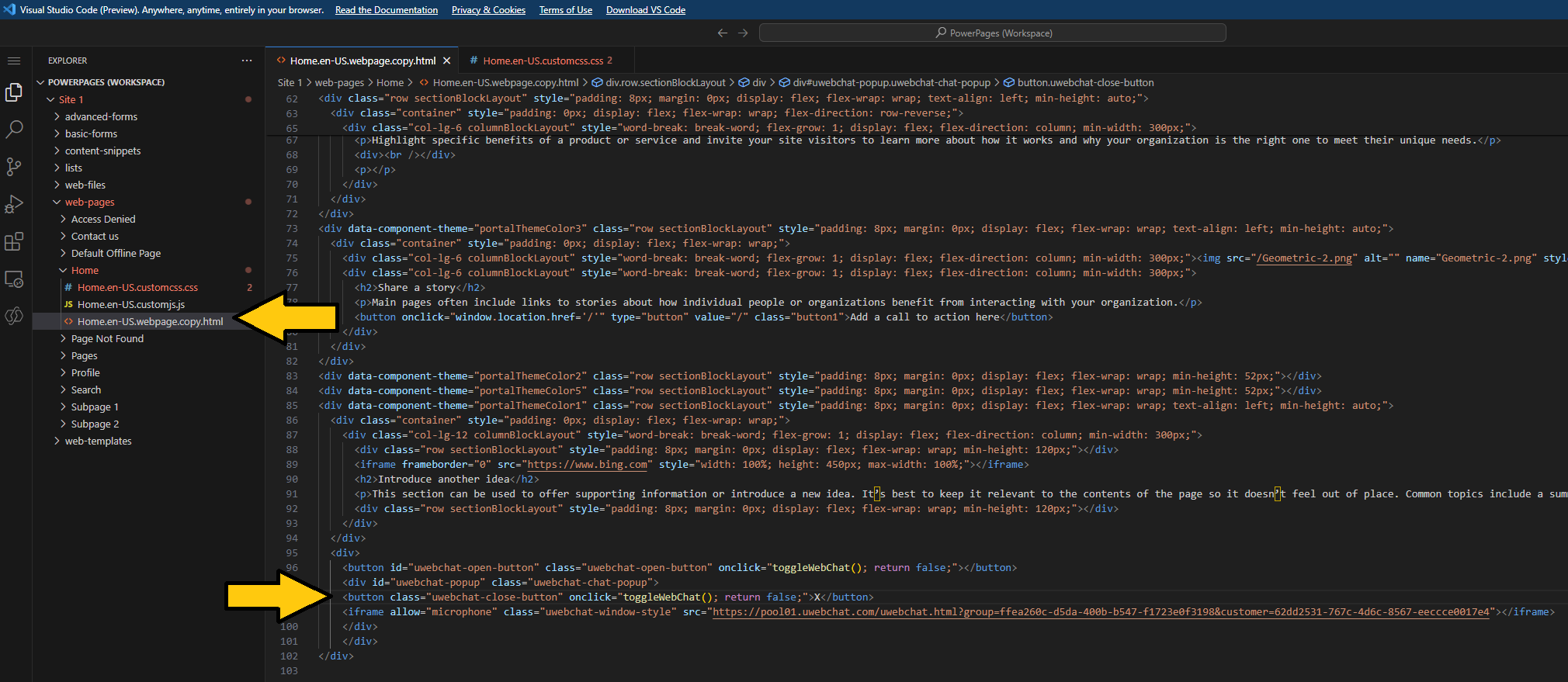
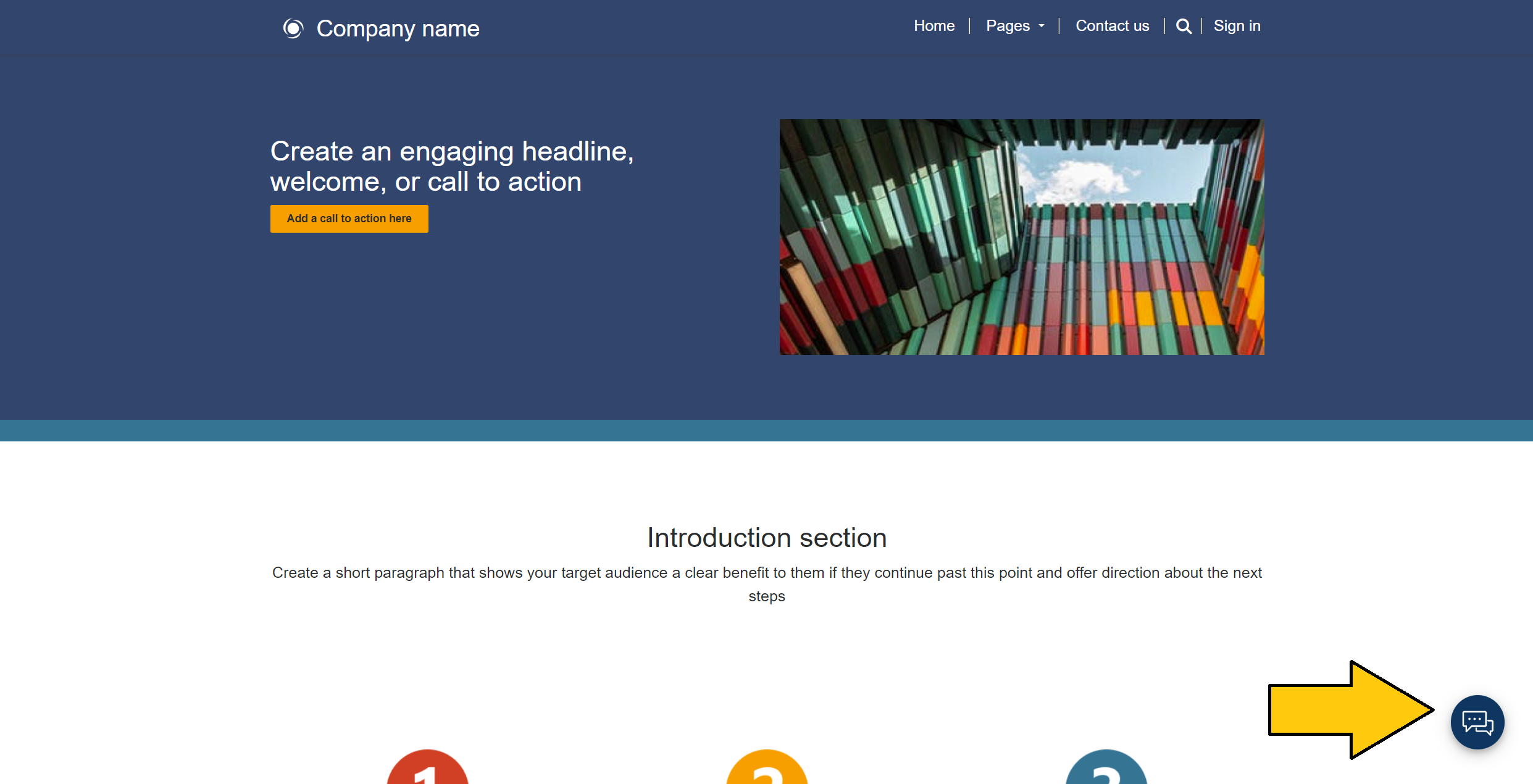
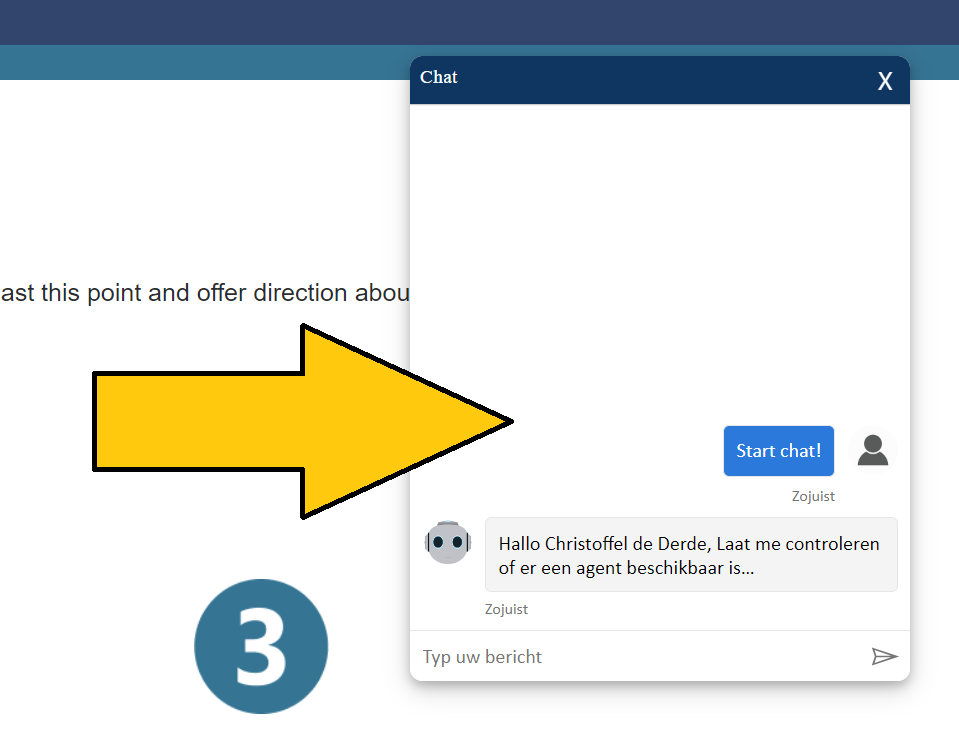
In de onderstaande schermafbeelding ziet u uWebChat geïntegreerd in een bestaande Power Pages-site. De standaard kant-en-klare chatknop is te vinden in de rechterbenedenhoek van het scherm. U kunt deze knop aanpassen met CSS.
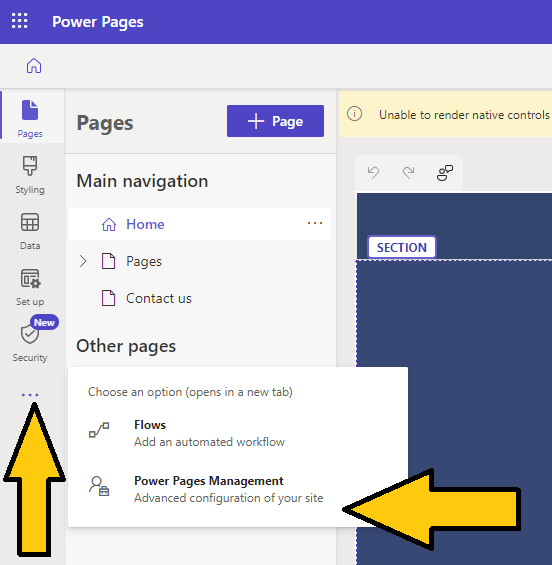
Via make.powerpages.microsoft.com kunt u een Power Pages-site bewerken.
Caution Power Pages designer en co-pilot page designer kunnen wijzigingen voorstellen die de uWebChat-integratie tijdelijk beïnvloeden.
Voer altijd een test na (de wijziging) uit. {.is-warning}
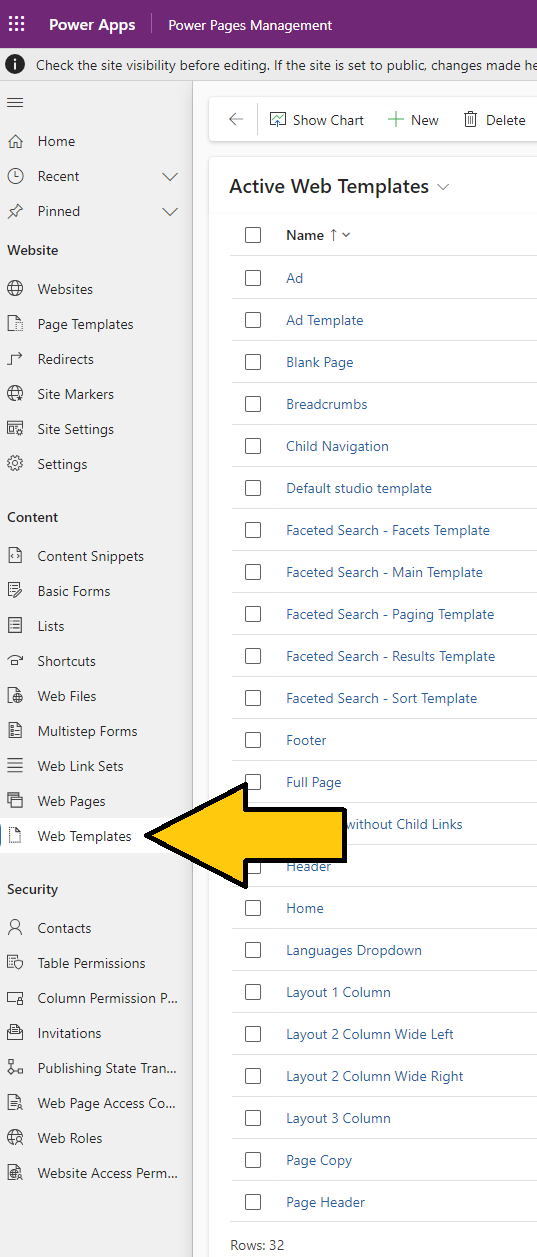
Advanced setup Via webtemplates of webpages in Portal Management kunt u uWebChat ook in Power Pages-sites integreren (bijvoorbeeld in de header als vervanging van de vergrootglas-zoekfunctie). {.is-info}