Purpose
Listen, search, transcribe and analyse recorded calls. Ideal for:
- Compliance and quality control
- Agent coaching
- Dispute resolution
Required permissions: UWEBCHATVOICE.RECORDINGS.VIEW, optionally UWEBCHATVOICE.AI.USE for transcription and summary.
7.1 Overview
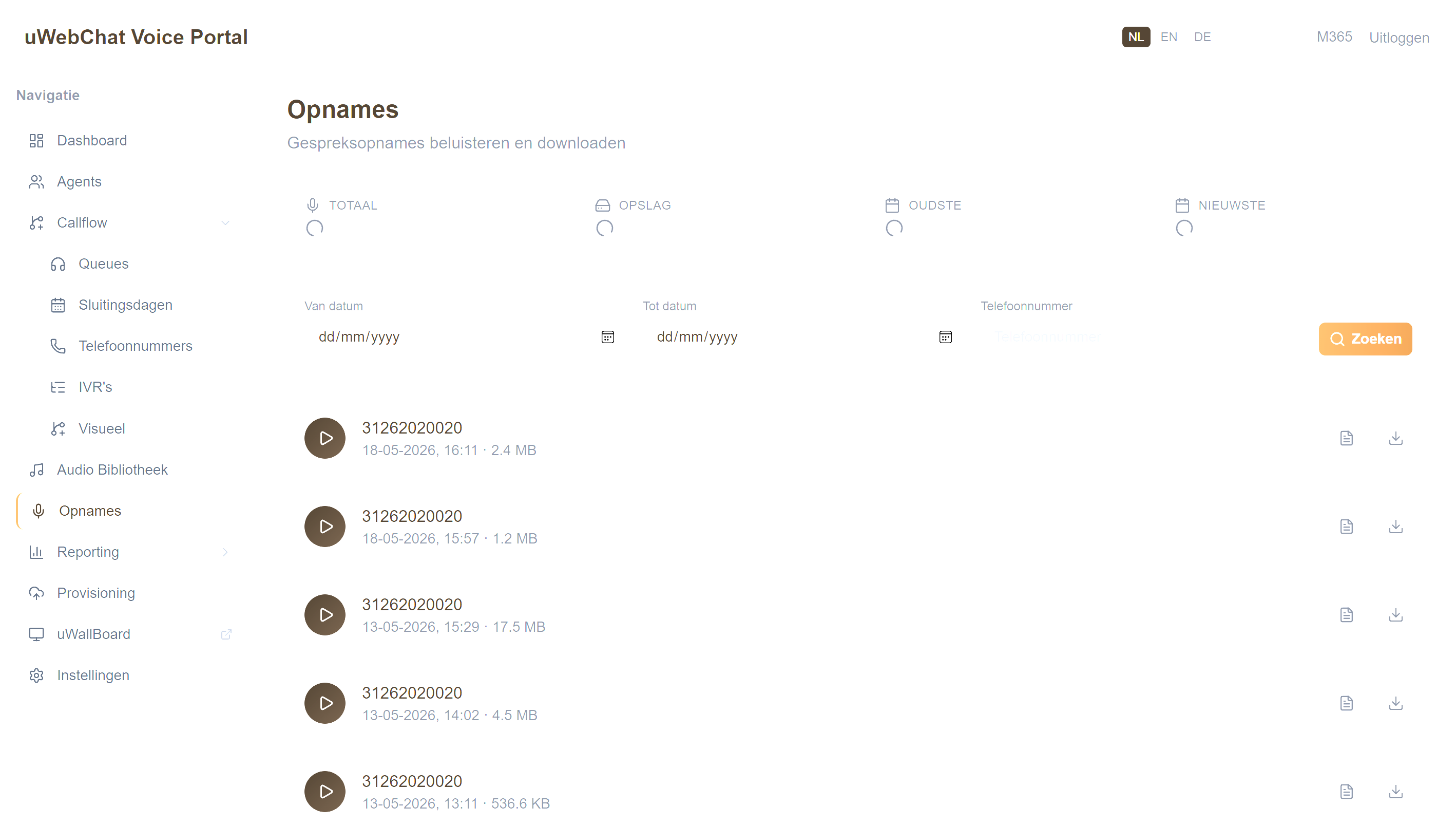
At the top a stats bar shows:
- Total number of recordings
- Total storage in MB
- Oldest and newest date
Filter the list with:
- From date / To date
- Phone Number (from/to)
- Search / Clear buttons
Pagination: 25 recordings per page.
7.2 Listening to a recording
- Click Play in the row of the recording you want
- The active recording player appears at the top with:
- File name, date, duration
- Standard audio controls (play, pause, scrub, volume)
- Click Download to save as WAV/MP3
7.3 AI transcription
After selecting a recording you can click Transcribe (button only visible with UWEBCHATVOICE.AI.USE).
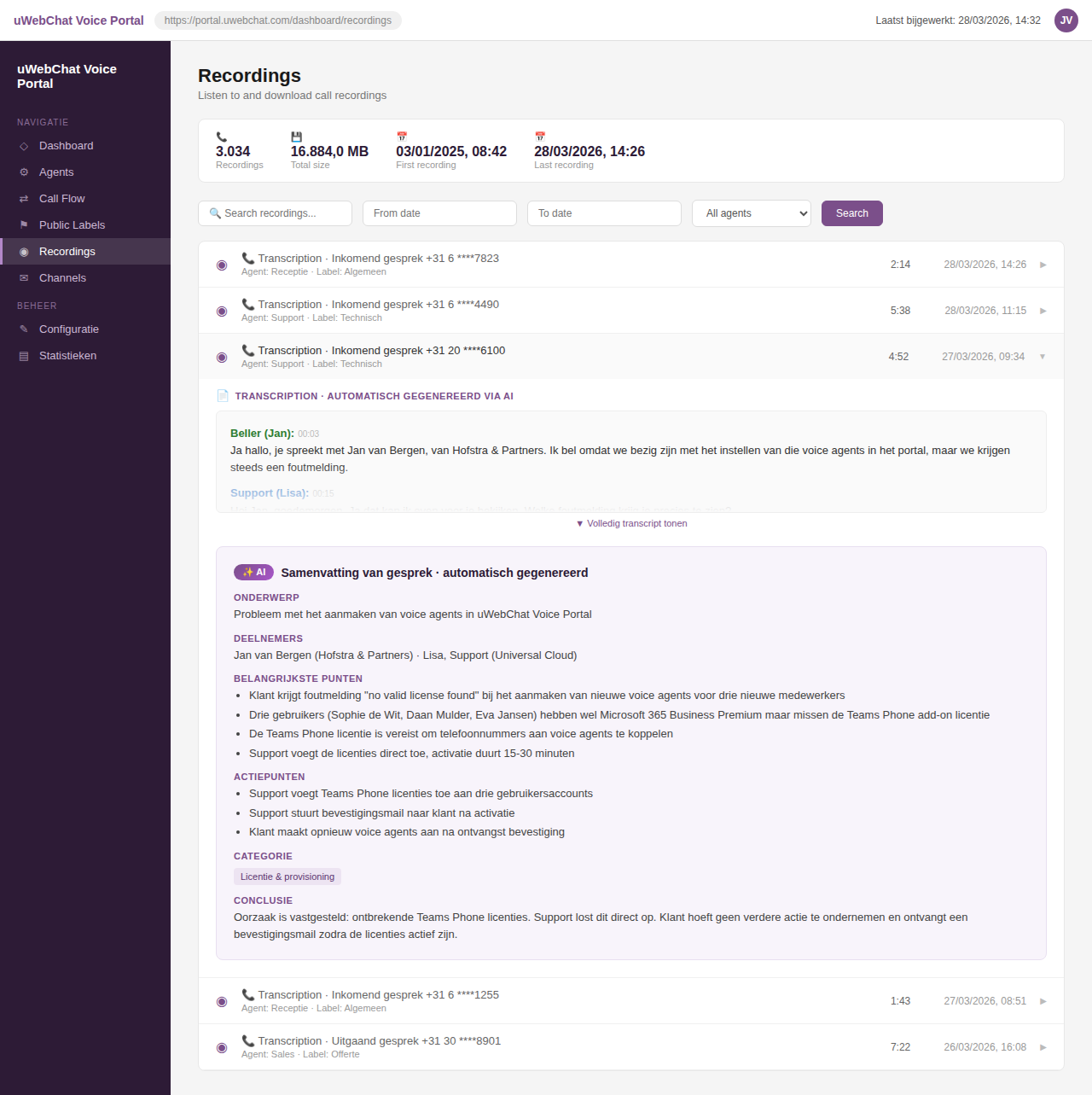
The system sends the audio to Azure AI Speech and shows:
- Segments per speaker
- Timestamps per segment
- Full text transcript
First time using this? First configure your Speech key in §11.1.
7.4 AI summary
After transcription the Generate Summary button appears. The AI system generates a structured summary:
- Topic of the call
- Key action points
- Sentiment
Download the summary as a TXT file via Download Summary.
7.5 Access and storage
Recordings are stored securely and are then available through this portal. Access is read-only — deletion or modification of original recordings does not happen through this portal.
Pitfalls
- Player doesn't work — file not yet synced. Wait 1–2 minutes or click again.
- Transcribe button missing —
UWEBCHATVOICE.AI.USEnot assigned, or transcription key missing (§11.1). - "Summary failed" — AI endpoint unreachable or quota exceeded. Check in §11.1.