2.1 Logging in
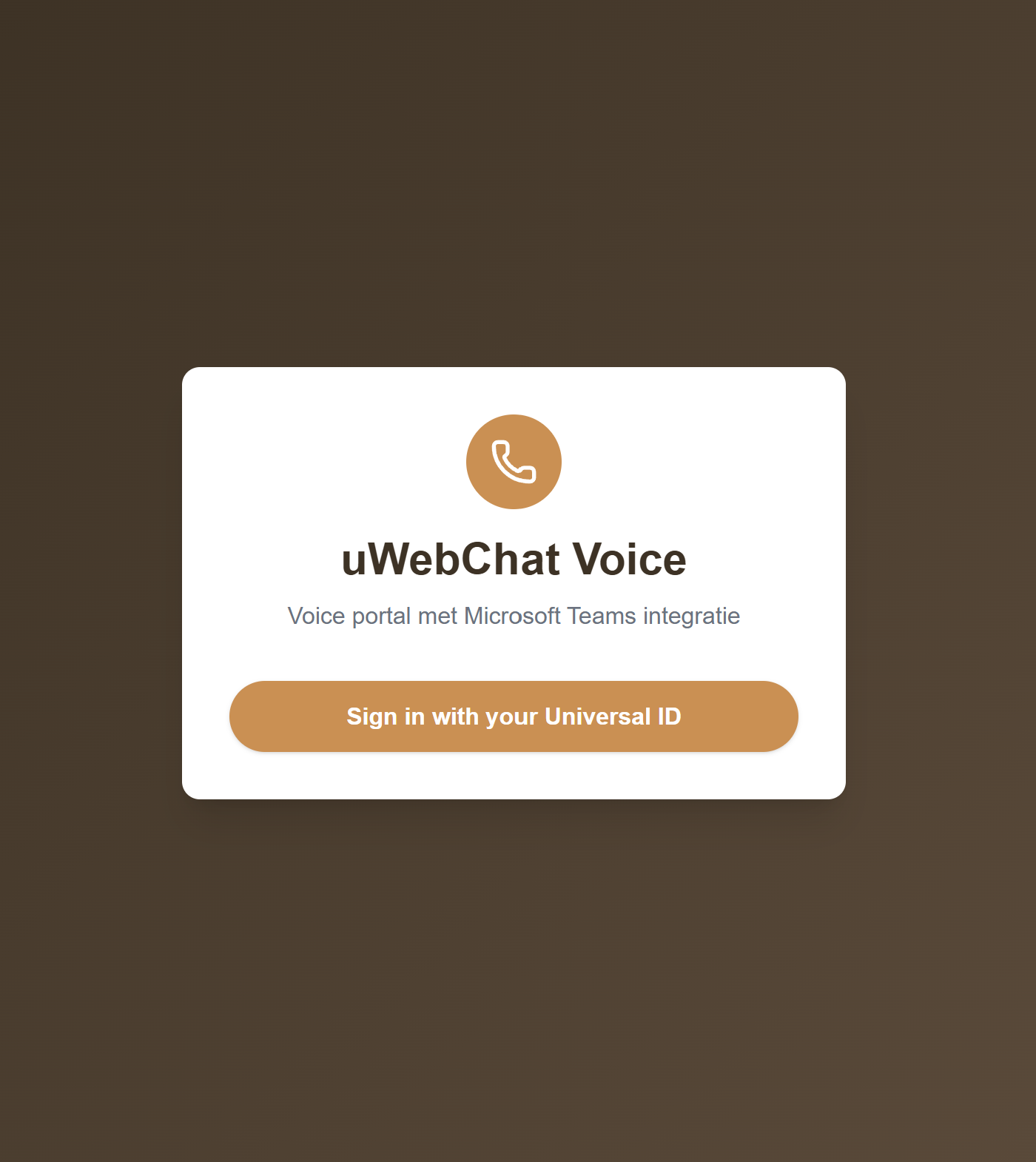
The portal is reachable at:
https://voice.uwebchat.com
Login uses your Universal Customer Portal account (e-mail + password, with mandatory MFA).
Tip: Login not working? Contact the Universal supportdesk.
2.2 Tenant context
Every organisation ("tenant") has a fully isolated data set. You see only the queues, agents, numbers, recordings and settings of your own tenant. Multi-tenant isolation is enforced at every level (database, audio, Key Vault secrets).
Your tenant name is shown in the top left of the screen (e.g. "UNIVERSAL IT BV").
2.3 Main navigation
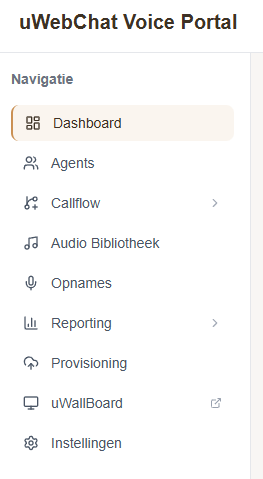
The left sidebar groups all portal functionality. Groups (Callflow, Reporting) expand with a chevron. Menu items you don't have a role for are automatically hidden. uWallBoard opens externally in a new tab.
2.4 RBAC: which roles do you need?
Functionality in the portal is gated by UWEBCHATVOICE.* permissions, which are linked to your account as web roles in the central customer system.
| Role | What you can do | Typically assigned to |
|---|---|---|
UWEBCHATVOICE.ACCESS | Open the portal, see basic status | Everyone with access |
UWEBCHATVOICE.QUEUES.VIEW / .EDIT | View / edit queues | Supervisor / Admin |
UWEBCHATVOICE.AGENTS.VIEW / .EDIT | Manage agents | Supervisor / Admin |
UWEBCHATVOICE.IVR.VIEW / .EDIT | IVR menus | Admin |
UWEBCHATVOICE.NUMBERS.VIEW / .MANAGE | Phone numbers (DIDs) | Admin |
UWEBCHATVOICE.AUDIO.VIEW / .UPLOAD | Audio Library + Voice Prompt Generator | Admin |
UWEBCHATVOICE.RECORDINGS.VIEW | Listen to recordings | Supervisor / Compliance |
UWEBCHATVOICE.AI.USE | AI transcription, summaries, voice prompts | Supervisor |
UWEBCHATVOICE.REPORTING.VIEW | Reports / dashboards | Supervisor / Manager |
UWEBCHATVOICE.CDR.VIEW / .EXPORT | CDR logs + export | Supervisor / Manager |
UWEBCHATVOICE.MONITORING.VIEW | Historical presence reports | Supervisor / HR |
UWEBCHATVOICE.WALLBOARD.VIEW | uWallBoard link in menu | Operations / TV display |
UWEBCHATVOICE.SETTINGS.VIEW / .EDIT | Tenant settings | Admin |
UWEBCHATVOICE.SECURITY.VIEW / .EDIT | Assign roles to portal users | Tenant admin |
Full matrix per page: see Appendix A in §12.1.
2.5 UI conventions
- Green "+" button in the top right of a list → create new item
- Pencil icon in a row → edit
- Trash icon → delete (with confirmation)
- Checkboxes at the start of each row → bulk actions (appear as buttons at the top)
- Filter bar above lists → date ranges, search fields, dropdowns