Purpose
An agent is a phone operator or employee who handles calls. In the Voice Portal you link an agent to their:
- Telephony interface (Teams, SIP device, external number)
- Phone number or extension
- Fallback number (e.g. mobile phone)
- Microsoft 365 account (for live presence)
- One or more queues
Required permissions: UWEBCHATVOICE.AGENTS.VIEW and .EDIT.
4.1 Overview
| Column | Meaning |
|---|---|
| Agent | E-mail address (UPN) of the agent |
| Display name | Name as shown on the wallboard — defaults to the UPN |
| Interface Type | MS Teams, Outbound, SIP, etc. |
| Number or Extension | Incoming number or internal extension |
| Is Always Available | true/false — if true, Teams presence is ignored and the agent always counts as available |
| Ring In Use | May the agent be rung while already on a call? |
| Fallback Phone Number | Called when the primary interface doesn't pick up |
| Microsoft 365 User | UPN for presence linkage |
4.2 Create / edit an agent
Click the green "+" button or the pencil icon next to an existing row. The Edit agent screen opens:
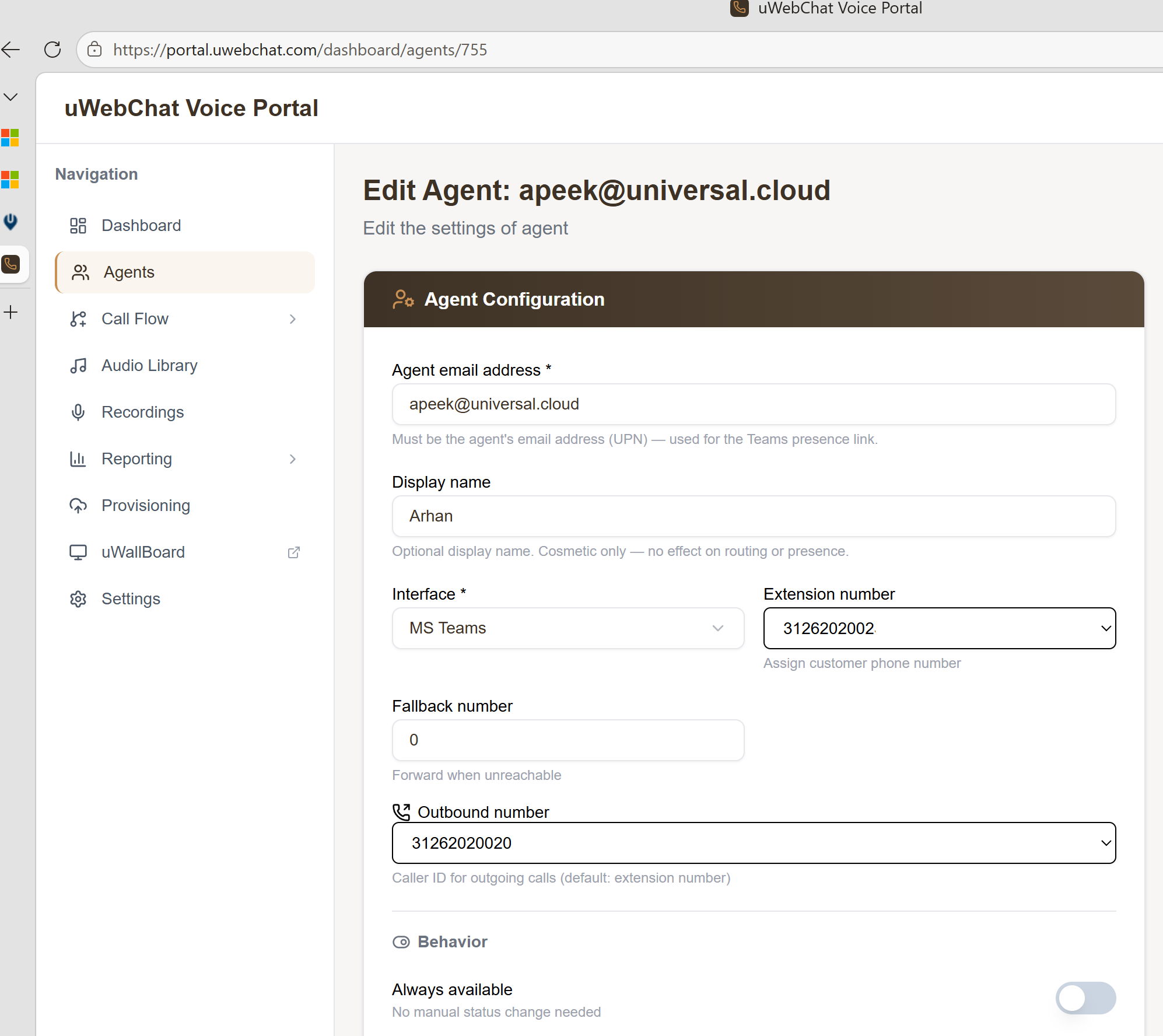
Fields:
- Agent e-mail address (UPN) — the agent's Microsoft 365 e-mail address (
name@domain). This is used for the Microsoft Graph link and the Teams presence linkage. - Display name — optional, purely cosmetic name shown on the wallboard. Has no effect on routing or presence. See §4.2.1.
- Interface Type — choose
MS Teamsif the call runs through Teams;Outboundfor forwarding to an external number;SIPfor a physical device - Is Always Available —
No(default): follow Teams presence;Yes: always routable - Ring In Use —
Yes: double ringing allowed;No: only when idle - Number or Extension — required, numeric
- Fallback Phone Number — optional; takes over on no-answer
4.2.1 Display name (Graph integration)
The agent e-mail address is the UPN (name@domain), retrieved through the Microsoft Graph link. Alongside this UPN you can now set a separate display name that is shown on the wallboard — useful when you'd rather see a recognisable name than the full e-mail address.
- New agents — the display name defaults to the UPN (
name@domain). - Existing agents — you can change the display name afterwards to your own, readable name.
The display name is purely visual. It has no effect on how uWebChat Voice operates — routing, presence and telephony remain based entirely on the UPN.
4.3 Linking Microsoft 365
The CONNECT TO MICROSOFT 365 button in the dialog links the agent to their Microsoft 365 account. This runs the Microsoft Graph OAuth flow (delegated). After that the portal fetches live Teams presence (Available/Busy/Away/Offline) and uses it as routing information.
Per-agent linking requires that the tenant is first linked tenant-wide. Tenant linking is configured in Settings (§11) or via the OAuth button on the first agent.
4.4 Assigning queues
Queue assignment happens from the agent detail view. Select one or more queues — on save the changes are applied immediately for each affected queue.
4.5 Bulk actions
In the list you can select multiple agents and:
- Toggle Always Available on/off
- Delete (after confirmation)
Pitfalls
- Presence stuck on "Unknown" — Microsoft Graph link missing or token expired. Open the agent and click CONNECT TO MICROSOFT 365 again.
- Agent receives no calls — check (1)
Is Always Available, (2) queue membership, (3)Ring In Usesetting. - "Number already in use" — two agents can't share the same number. Adjust one of them.