Purpose
A Shift queue is a queue of type Shift whose staffing varies through the day or week. Instead of a fixed agent list, you plan ahead in a schedule who is on duty when; the system automatically makes sure only the agents scheduled at that moment are reachable through the queue.
What does it solve?
- No more manually switching agents on and off at shift changes.
- One plan up front, executed automatically down to the minute.
- A clear view of who is on duty when, plannable weeks ahead.
Required permissions: the Universal - uWebChat Voice - Shifts.Edit role to manage schedules (templates and weekly planning). The queue type and the agent pool are set with UWEBCHATVOICE.QUEUES.EDIT (see §5.1).
5.2.1 When do you use Shifts?
Shifts is meant for situations where a queue's staffing varies through the day or week:
| Use case | Example |
|---|---|
| Fixed shift rota | Team A: 9–13h, Team B: 13–17h |
| Separate morning / afternoon teams | Reception in the morning, sales team in the afternoon |
| Holiday periods | A dedicated schedule for summer or public holidays |
| Variable weekend rota | Different staffing on weekends than on weekdays |
| On-call services | An emergency service that forwards in the evening |
For queues where the same agents are always reachable, Shifts is not needed — a Default queue is enough (see §5.1.2).
5.2.2 Concepts at a glance
| Concept | What is it? |
|---|---|
| Shift queue | A queue of type Shift. Agents are not permanent members; the schedule decides who is on duty when. |
| Template | A weekly rhythm: per day-of-week and per hour which agents are on duty. You can keep several templates per queue (e.g. Standard, Summer rota, Evening shift), each with its own colour. |
| Default template | The template marked with a star (★) that is used automatically for any week you don't explicitly assign. |
| Week planner | The view where you pick, per calendar week, which template runs. |
| Deviation (override) | An exception for one specific hour on one specific date (e.g. "only this Thursday from 14:00–15:00 Jan is replaced by Anne"). |
| Scheduler | The background process that periodically reads the plan and puts the right agents in the queue. |
5.2.3 Opening the Shifts page
In the left main menu, open Callflow › Shifts.
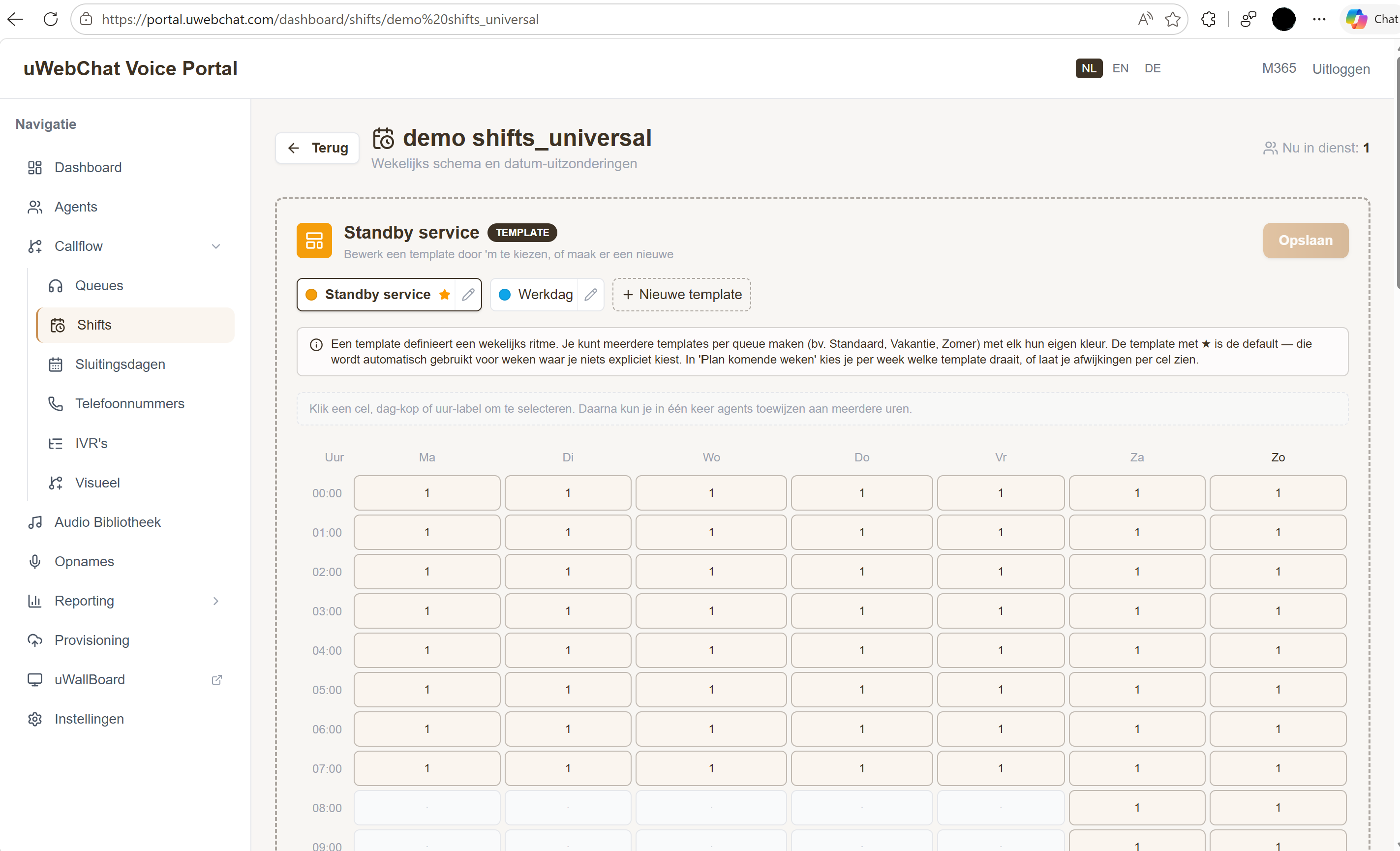
You see a list of all queues of type Shift. Per queue:
- The queue name
- Assigned agents (the pool)
- How many of them are on duty now
Click Manage to open that queue's schedule.
5.2.4 Setting a queue up as a Shift queue
You can set up a new queue as a Shift queue from the start; an existing queue you convert afterwards.
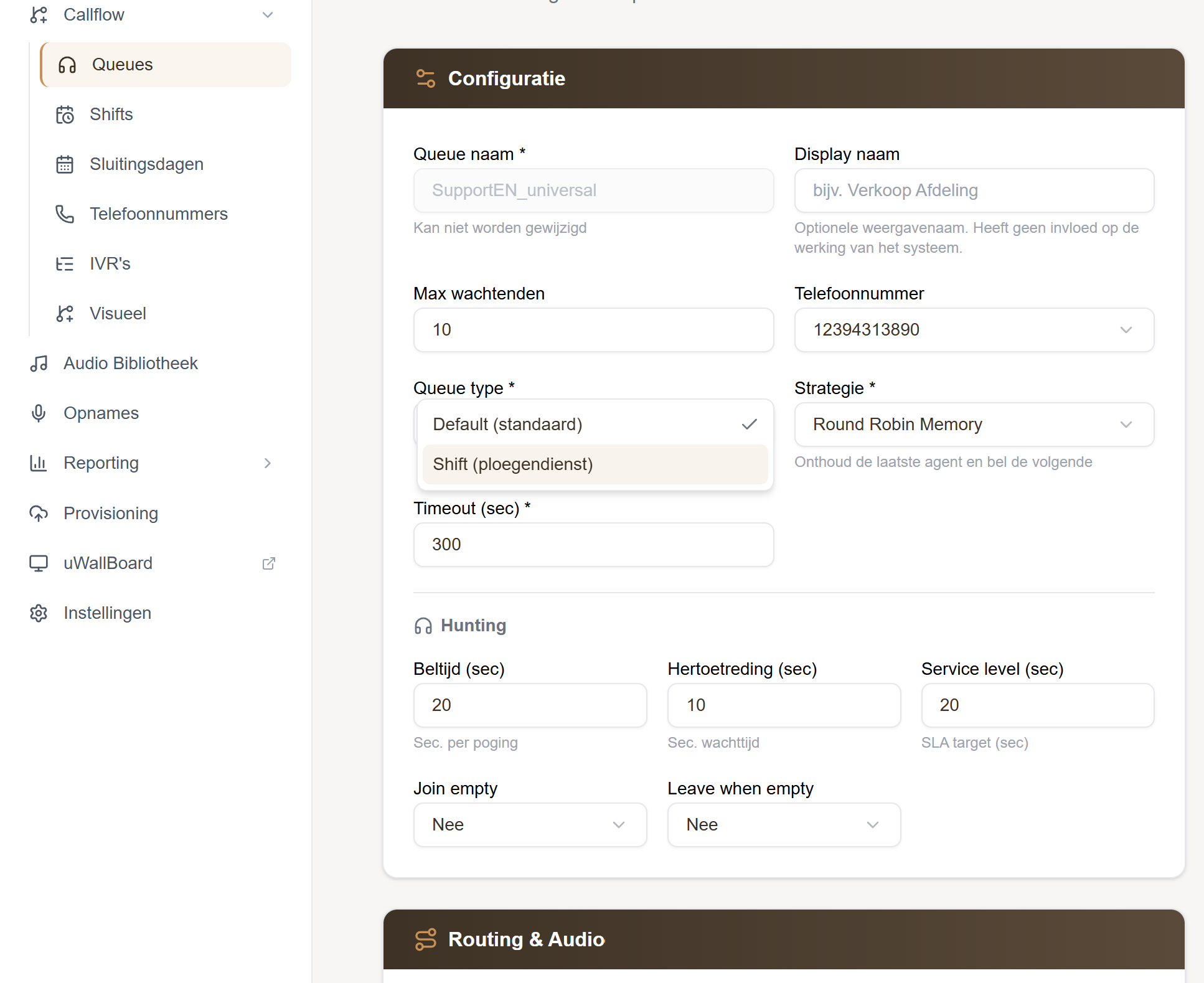
- Go to Callflow › Queues and open a queue or click New queue (see §5.1.2)
- Set Queue type to
Shift - Click Save
From that moment the queue appears in the Shifts overview list and you can schedule it.
Assigning agents to the queue (the pool)
Before you can schedule, the queue needs to know which agents are eligible for a shift at all:
- Open the queue (Callflow › Queues › click the queue)
- Scroll to the Agents section and add the agents that are part of this team
- Click Save
This list is the pool: the Shifts planner can only schedule agents from this pool. Note — an agent in the pool is not automatically on duty; that only happens once you place them in the schedule.
5.2.5 Filling in the weekly template
Open the queue's Shifts schedule (via Manage on the overview). At the top is the Weekly template section with a dashed border and a TEMPLATE label — this is the base rhythm that repeats every week.
The grid shows 7 days × 24 hours; each cell is one hour on one day-of-week.
Filling a cell
- Click a cell to select it (the border turns to the accent colour)
- Click Assign agents
- Pick one or more agents
- Click Save in the modal — the agents are now in that cell
Faster: multiple cells at once
- Click multiple cells to select them together
- Click a day header (Mon, Tue, …) to select the whole day
- Click an hour label on the left (09:00, 10:00, …) to select that hour across all days
- Then click Assign agents once — the choice applies to all selected cells
Draft until you save: changes are only written to the schedule after you click Save at the top right. Until then everything is a draft.
Tip: hover over a cell to see in a tooltip which agents are in it.
5.2.6 Creating multiple templates
Often you need more than one layout: a standard week, a holiday week, an evening shift. Instead of constantly overwriting, you can keep several templates side by side.
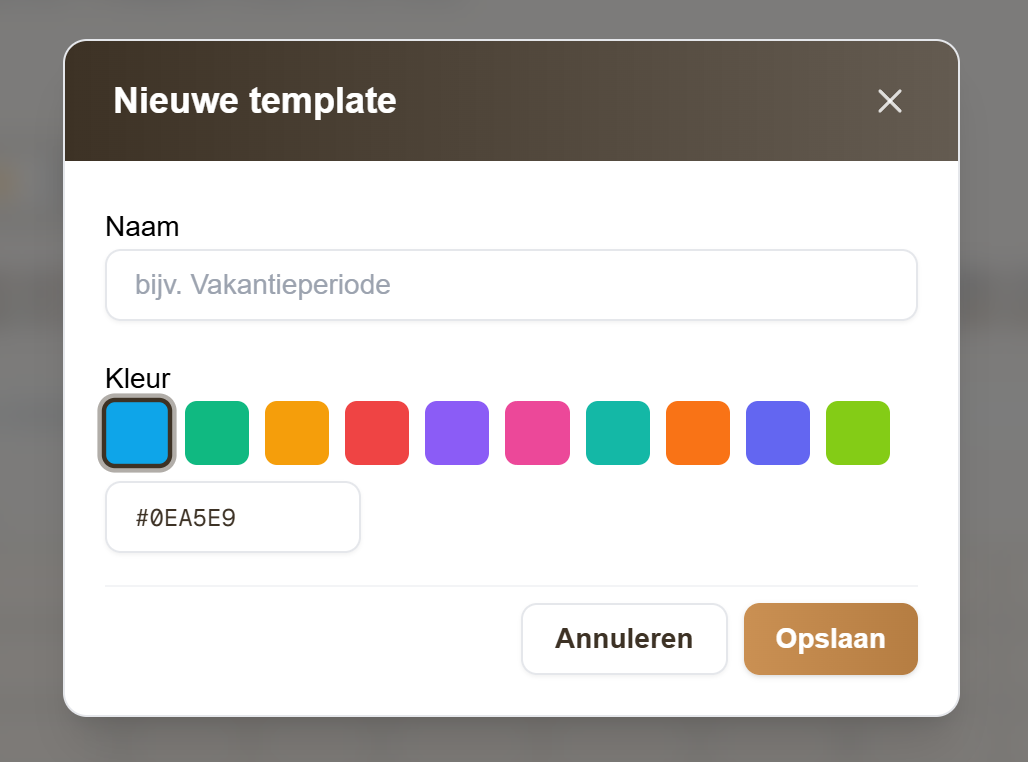
New template
- In the templates tab row, click + New template
- Give it a name (e.g.
Summer rota) - Pick a colour — handy for visual recognition in the week planner
- Click Save
The new template copies the active template's schedule as a starting point — so you don't start from scratch.
Editing a template
Click the pencil icon next to a template tab. In the modal you can:
- change the name
- choose the colour
- mark the template as default (★ — used for weeks without an explicit choice)
- delete the template (only possible if it isn't the default and isn't linked to a week)
Tip: give each template a logical colour (e.g. light blue for standard, orange for holidays). That colour comes back in the week planner.
5.2.7 Planning per calendar week
Below the templates section you see Plan upcoming weeks — here you assign, per calendar week, which template runs.
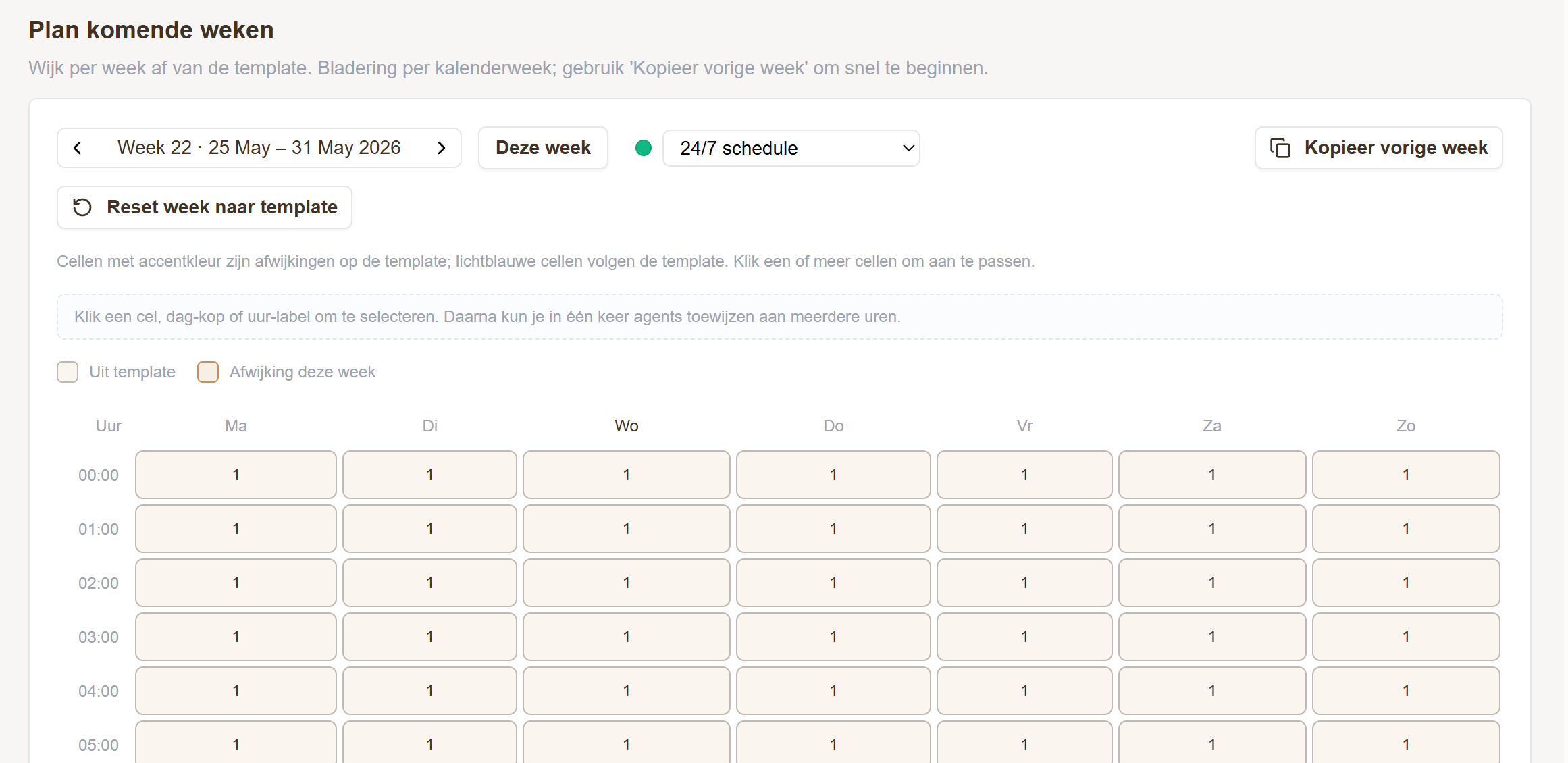
Browsing weeks
- ◀ / ▶ — previous / next week
- This week — back to the current calendar week
The week number and date range show which week it concerns.
Choosing a template for a week
Next to the week navigator is a dropdown with all your templates:
- Pick Use default template → the week automatically follows the default template (no separate record).
- Pick a specific template (e.g.
Summer rota) → it becomes active for this week.
The change is saved immediately — no separate save button needed. Switching between templates is safe: you don't lose any deviations you added later (see §5.2.8).
Cells take the colour of the active template when they are staffed by that template. If the Default ★ tag shows next to the dropdown, this week follows the queue default instead of an explicit template choice.
5.2.8 Hourly deviations
Sometimes one week differs for just one hour — for example a training, sickness or special event. That's what hourly deviations (overrides) are for.
Creating a deviation
- Go to the week you want in the week planner
- Click the cell(s) you want to change
- Click Assign agents in the toolbar
- Pick the agents on duty for that specific date + hour
- Save in the modal
The deviation gets accent styling in the grid (see the legend above the table), so you can see at a glance which cells deviate from the template.
Reverting a deviation
- Select the cell(s) with the deviation
- Click Follow template in the toolbar
- The cell falls back to that week's template
Resetting a whole week
Click Reset week to template at the top right → all deviations for that week disappear and the week falls back entirely to the active template. A confirmation follows so you don't wipe it by accident.
Copy previous week
Is a new week (almost) a copy of the previous one? Click Copy previous week: the target week gets the same template and the same deviations as the source week. A green banner confirms: "Previous week copied. Template: X · N deviation(s) copied."
5.2.9 What does the system do in the background?
You don't have to start anything manually — the scheduler does the following automatically:
- Every quarter of an hour the system checks, for each Shift queue: "Who should be on duty right now according to the plan?"
- It compares the current staffing with the planned staffing
- It adds agents who should now be on duty, and removes agents whose shift is over
Example: a planner scheduled Jan from 9–13h and Anne from 13–17h. At 13:00 the system switches automatically: Jan out, Anne in. No manual action needed.
Lead time: a change is active on the phone system within one quarter of an hour. The plan works in local time (Europe/Amsterdam); daylight-saving transitions are handled correctly and automatically.
5.2.10 Frequently asked questions
What happens if I switch a template for a week that already has deviations? The deviations simply stay — they are independent of the template choice. The switch only means that cells without a deviation now come from the new template.
What if an agent is removed from the pool while they were scheduled? The planned shift is no longer applied — the scheduler skips them. The spot in the template/deviation stays until a planner cleans it up.
Does Shifts also work for holidays / public holidays? Yes, in two ways: create a dedicated holiday template and assign it to the holiday week, or use individual deviations for one specific date.
Can agents change their own shifts? No — Shifts is an admin tool. Only users with the Shifts.Edit role can make changes.
How quickly do customers/agents see a change? At most 15 minutes — the scheduler synchronises every quarter of an hour.
What if I forget to choose a template for a week? No problem — weeks without an explicit choice automatically fall back to the default template (★). So there is always valid staffing.
Can I schedule multiple agents in the same hour? Yes, a cell supports multiple agents. The call system distributes calls according to the queue strategy (Round Robin, Ring All, etc. — see §5.1.3).
5.2.11 Permissions and roles
| Role | May… |
|---|---|
| Universal - uWebChat Voice - Shifts.Edit | Full: create / edit / delete templates, manage weekly planning + deviations |
| Universal - uWebChat Voice - Admin | Everything, including Shifts |
| Other roles | No access to Shifts |
A tenant administrator links roles via Settings › Permissions.
Pitfalls
| Problem | Possible cause | Solution |
|---|---|---|
| Agents aren't on duty even though they are scheduled | Change is more recent than 15 min ago | Wait up to 15 min for the next sync cycle |
| Agent not selectable in the modal | Agent isn't in the queue pool | Add the agent under Queues › [queue] › Agents (§5.2.4) |
| Cell stays grey despite filling it | Change not saved in the template | Click Save at the top right of the template section |
| A whole day gets selected when I wanted one cell | Clicked the day header instead of the cell by accident | Click the day header again to clear the selection |
| Can't delete a template | Template is the default or still linked to a week | First mark another as default, or remove the week link |
| Week dropdown shows "Default ★" but I want this week to follow the default anyway | Nothing to do — this is the "follows default" status | OK |
For deeper issues: log a ticket with support including the queue name, the time, and the expected vs. observed behaviour.